Semantic models
Describe what your data means once, in your team's vocabulary, and let the agent and your verified queries use those names instead of physical tables and columns.
Audience: builders
What a semantic model is
A semantic model is a versioned definition of your data's meaning:
- Datasets and fields. The things your team talks about, such as invoices, vendors, and amounts, with their descriptions.
- Relationships. How datasets join.
- Metrics. How numbers like days payable outstanding are defined.
The model says nothing about where the data lives. Each Project maps the model's datasets and fields to the exact tables and columns of a source attached to it. That split is what makes a model reusable: the same model, and every verified query linked to it, works in another Project that maps it to different tables.
For how the agent queries through a model, see How the agent uses your data.
Import a model
If your team already keeps a semantic layer in another tool, import it rather than writing it again.
Open Semantic models
In the Project's Context tree, expand Semantic models under Data and choose Import semantic model.
Drop the file
Drop a file or choose one, and the format is worked out from the file. Paste the definition instead takes the text directly.
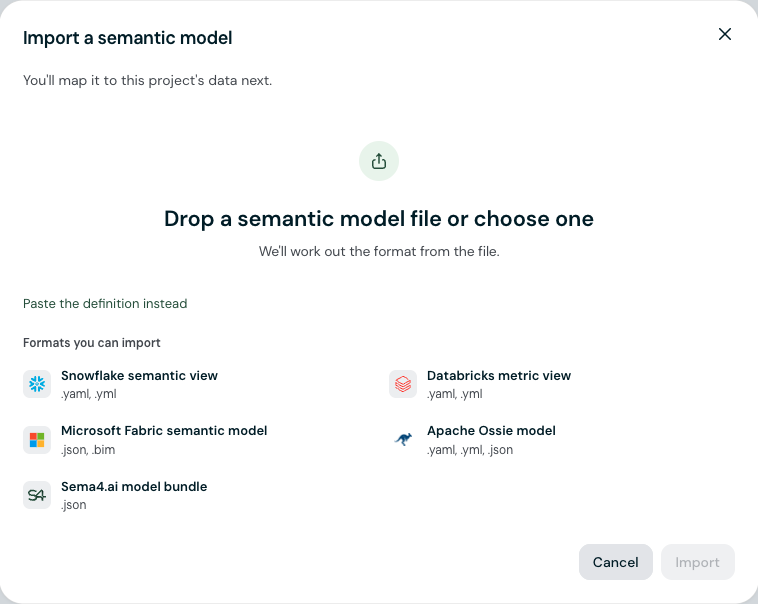
| Format | File types |
|---|---|
| Snowflake semantic view | .yaml, .yml |
| Databricks metric view | .yaml, .yml |
| Microsoft Fabric semantic model | .json, .bim |
| Apache Ossie model | .yaml, .yml, .json |
| Sema4.ai model bundle | .json |
The import keeps the original definitions and reports anything it could not translate. Connection details in a Fabric definition are removed.
Choose who can use it
| Option | Who can use the model |
|---|---|
| This project | Only this Project |
| Your team | Every Project in your team. Needs a team or workspace admin |
| Your organization | Every Project in the organization. Needs a workspace admin |
| Only you | Only you |
A team or organization model appears in the Semantic models list of every Project it is shared with, with no attach step. Each of those Projects maps it to its own data.
Import and map
When a matching source is already attached, select Import and map to go straight to the mapping. When none is, Import and attach a source takes you through attaching one first.
Verified queries that came with the import are listed under Imported verified queries as Candidate. They do not run until someone reviews and publishes each one.
Create a model in chat
Choose Create semantic model in chat in the Semantic models section. The conversation opens with the request started for you; finish the sentence with what the model should cover, such as "the AP tables, with invoices, vendors, and payment terms."
The agent can look at the attached source's tables, draft a definition, validate it, and map it for you. Review the result on the model's page before you rely on it.
Map the model to your data
A model does nothing in a Project until it is mapped. Open the model: the Data mapping card on its Overview tab shows where it stands.
- Map with assistant asks the agent to propose the mapping.
- Map data maps each dataset and field yourself.
- When every dataset has a table of the same name, Apply suggested mapping takes them as they are, and Review mapping lets you check first.
The mapping belongs to this Project only and is saved as a whole: if any part fails to validate, the previous mapping stays in place. Mapping needs the source attached first, with access to the mapped tables.
When something goes wrong, for example the source is detached or a mapped column is gone, the model shows Needs attention. Queries that use it may fail until it is fixed; Fix with assistant or Fix mapping sorts it out.
Read a model's page
The status at the top reads Ready when the model is mapped and usable, or Not mapped and Needs attention when it is not.
- Overview shows the data mapping, the model's metrics, what it contains, and what uses it.
- Definition shows the full definition.
- Verified queries lists the verified queries linked to the model. Once the model is ready, add some so agents answer consistently.
The More model actions menu holds Edit definition, Export as bundle, Copy ID, Remove mapping, and Archive model. Edit with assistant opens a conversation about the model.
Change a model
Every change to the definition creates a new version. Changing only the name or description does not, so mappings and linked queries keep working.
- Edit definition edits the definition in place, and Save new version saves it.
- Upload new version takes a file exported again from the original tool and shows what changes before you upload.
New versions can break what depends on the old one. Queries and mappings that use removed fields stop working, and each linked verified query must be relinked to the new version. Check the model's Verified queries tab after you change it.
Share a model with its logic
Export as bundle packs the model together with its linked verified queries. Import the bundle into another workspace or Project as a Sema4.ai model bundle, then map it and attach the sources it needs there.
Archive a model
Archive model removes it from use: Projects that map it stop using it, and its verified queries can no longer run against it. An archived model cannot be restored.