Set up for Local Development
Before you can start building data-enabled agents, you'll need to set up your local development environment. This setup enables you to create and test Actions with Data Access before deploying them to production.
Prerequisites
In order to follow this tutorial, you'll need have at least the following in place.
- Basic familiarity with SQL and Python
- VS Code (or Cursor) and Sema4.ai extensions installed on your development machine
- Sema4.ai Studio installed on your machine
- (Optional) Access to Sema4.ai Control Room with minimim Operator role
Installation
Install IDE of your choice
Our SDK is made and tested to work with VS Code, but extensions based on the same project, such as Cursor, also work. Choose the one that you are comfortable with!
- Install VS Code (opens in a new tab).
- Install Cursor (opens in a new tab).
Install Sema4.ai SDK extension for VS Code
Install the Sema4.ai SDK from the VS Code Marketplace (opens in a new tab) or follow the detailed instructions in Install SDK.
Install Sema4.ai Data Access extension for VS Code
Install the Sema4.ai Data Access extension from VS Code Marketplace (opens in a new tab).
Install Sema4.ai Studio
Install Sema4.ai Studio by following the instructions in Install Studio
Connect Studio to Control Room
This step is optional, but recommended. It allows you to test publishing and deploying agents to Control Room.
Sema4.ai Data Server
The Sema4.ai Data Server is a component that provides the zero-copy access to enterprise data sources. On a developer laptop our extensions and Studio shares one Data Server, which is managed by Sema4.ai Studio. The data server maintains connections to the data sources and provides a unified query interface to all of them - regardless of the data source type.
On first start, Studio will automatically download and install the Data Server for you. Please note that it will take a few minutes to download and install the Data Server.
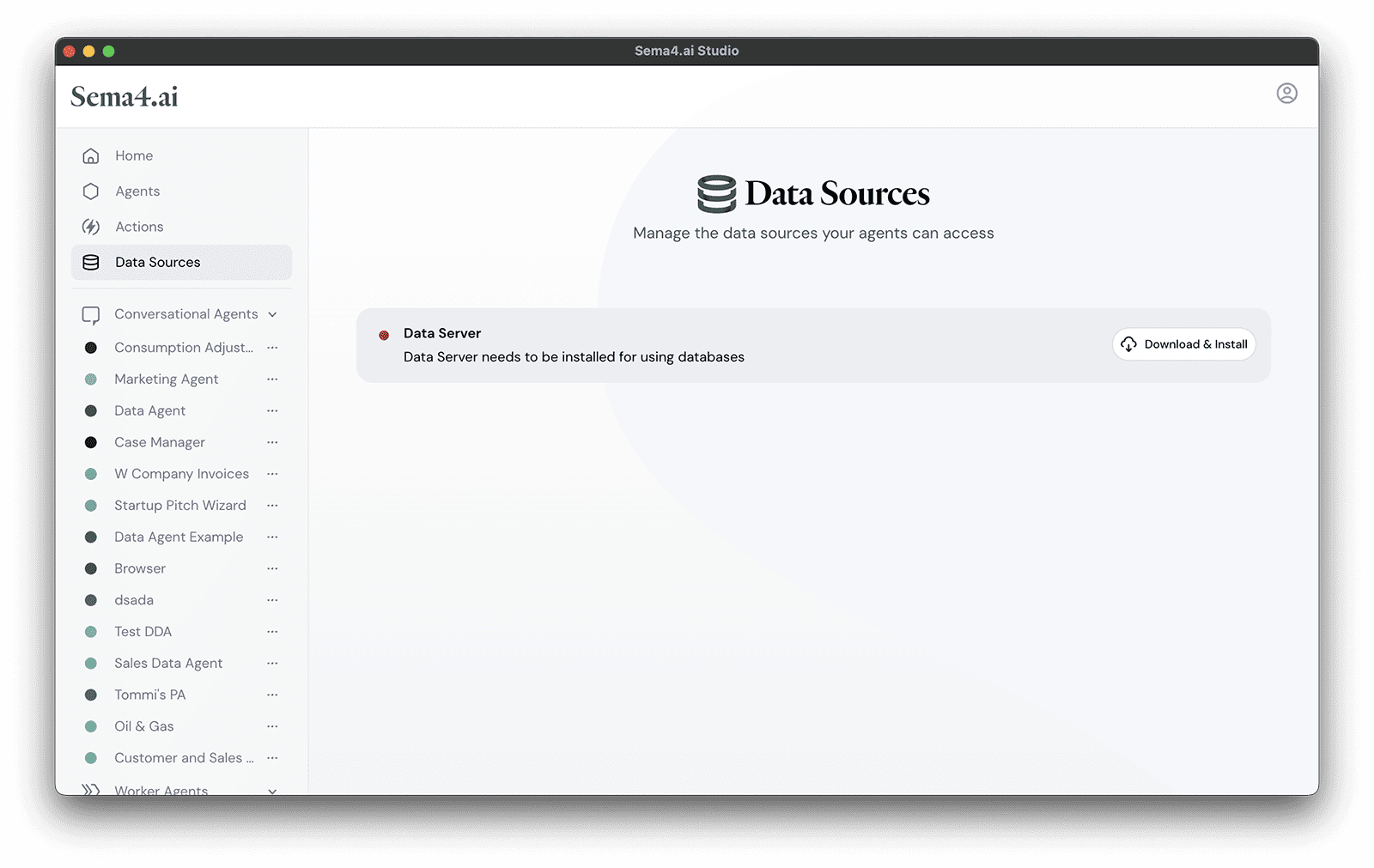

The Data Server state is managed by Sema4.ai Studio, thus when using SDK and Data Access extensions, you will need to keep the Studio open to maintain the Data Server state.

Restarting Data Server
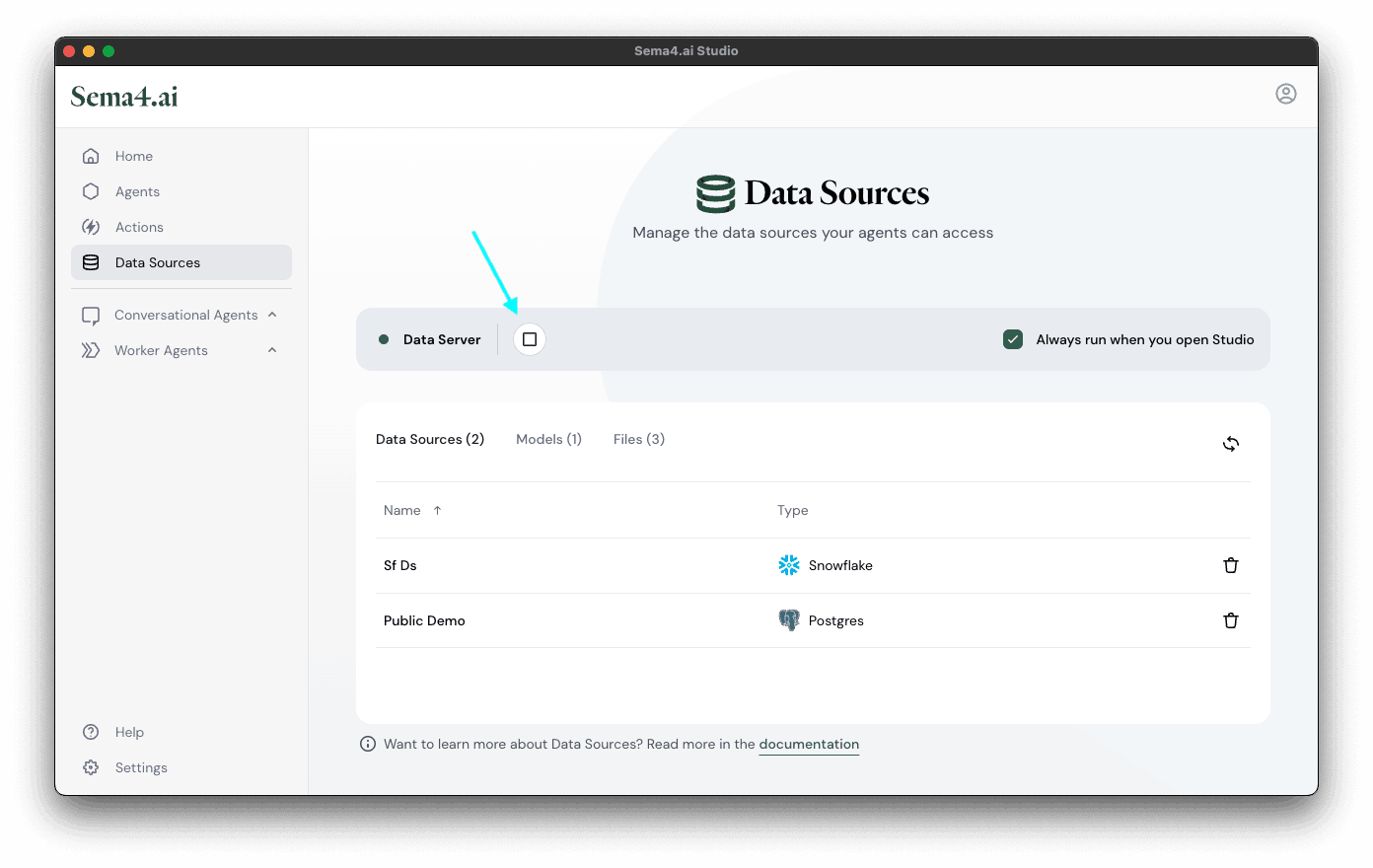
In some cases you might want to restart the Data Server. You can do this directly in Studio by clicking the Stop Data Server button in the Data Sources view and then starting it again.
Keeping Data Server always running
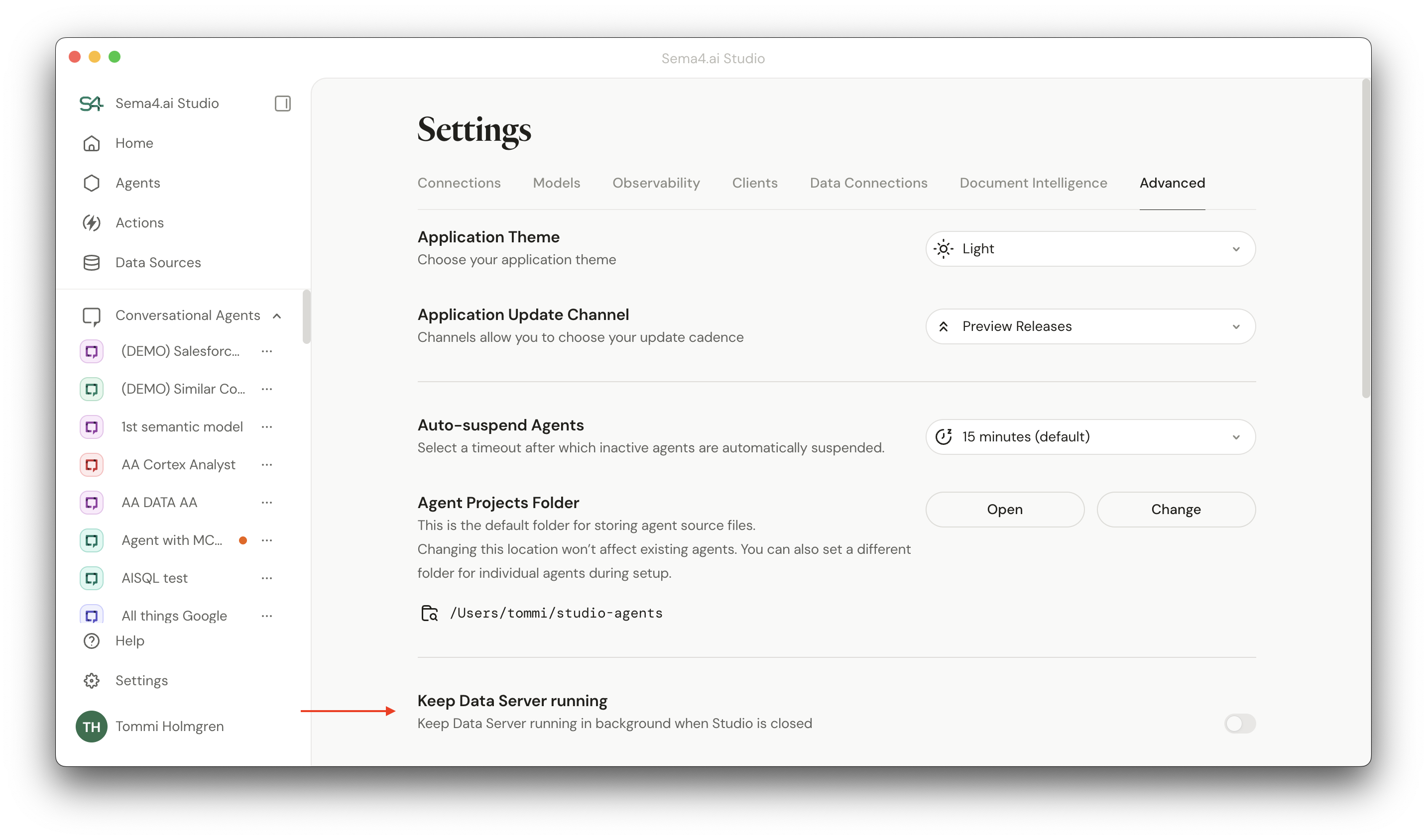
By default, Data Server stops when Studio is closed. You can change this by clicking the Keep Data Server always running checkbox in the Settings > Advanced tab.
Troubleshooting
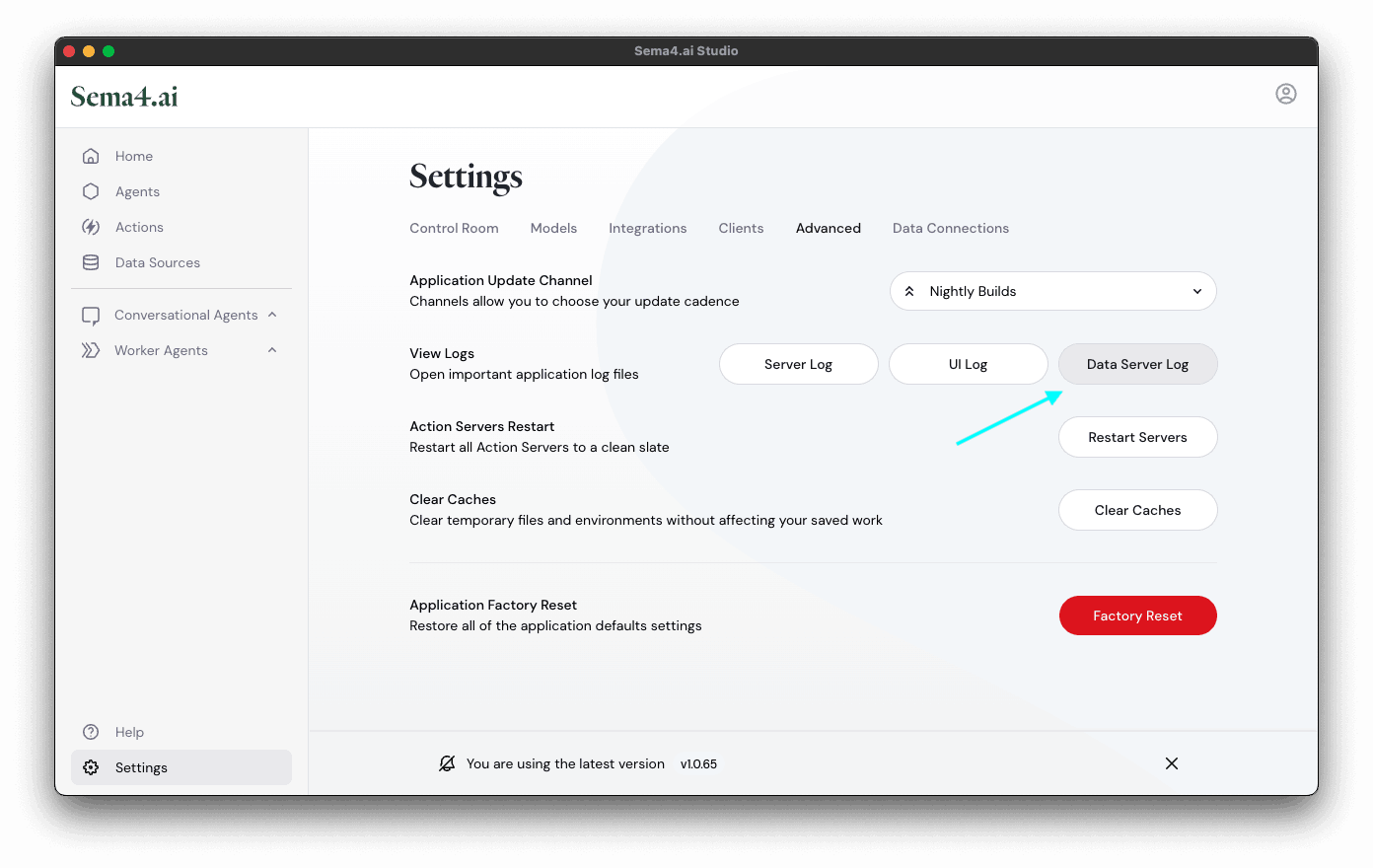
You can view the Data Server logs in Studio through Settings view Advanced tab by clicking Data Server Log button.