Evaluating your Agent
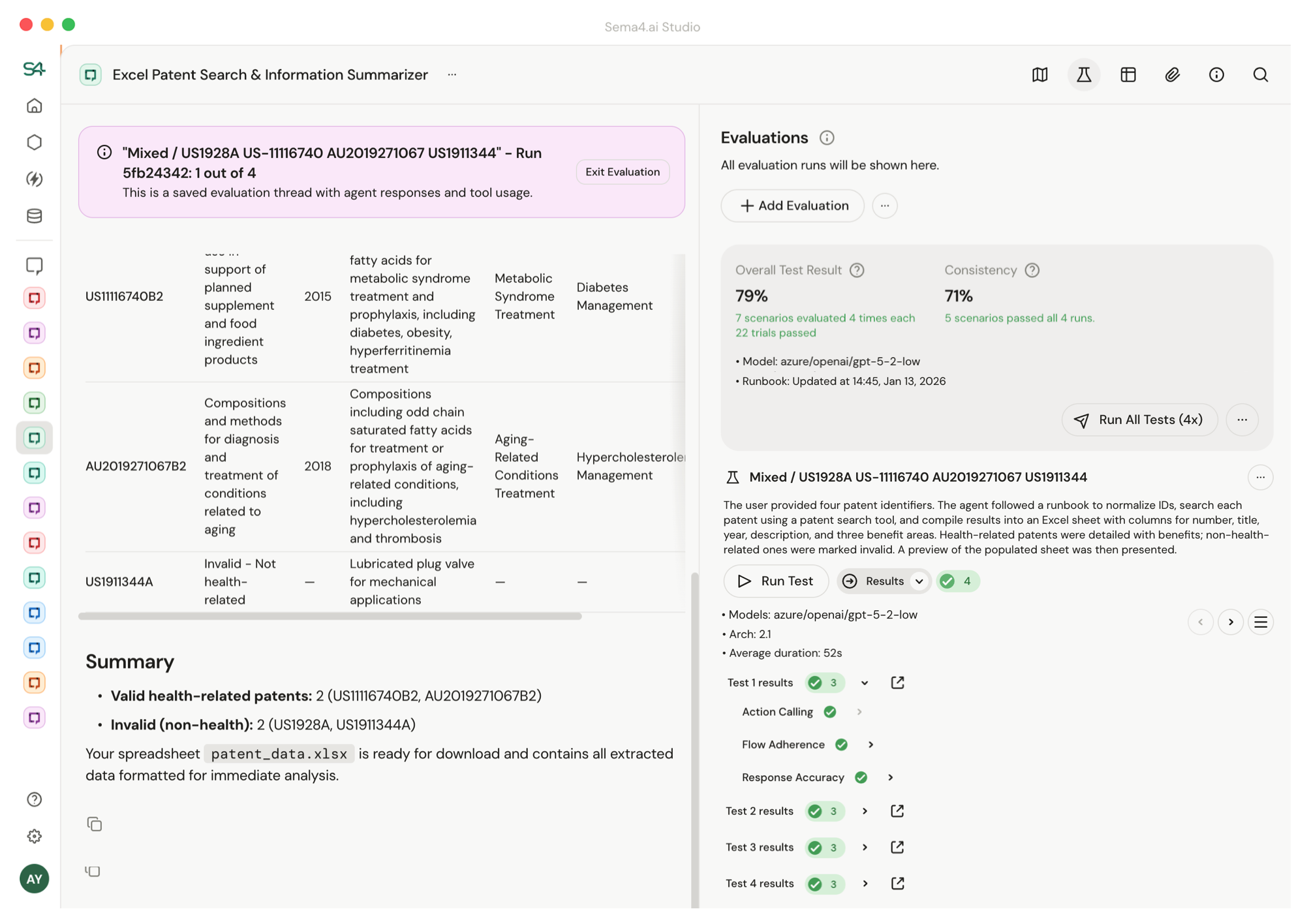
This guide walks through creating evals step by step, understanding results, and common workflows.
For more on how evaluations work, evaluation modes, and when to use them, see Agent Evaluations.
Creating an evaluation
Step 1: Record a Golden Run
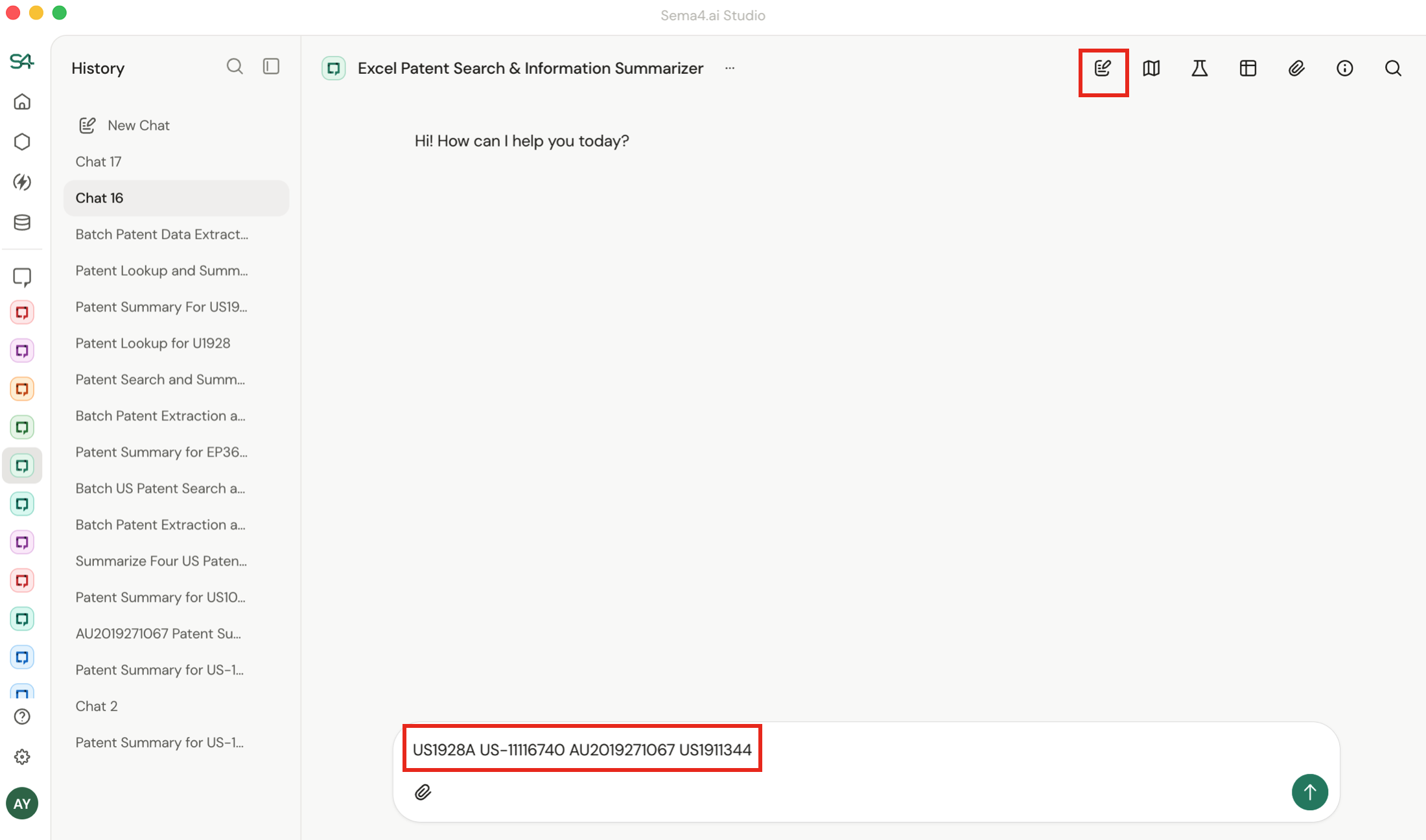
Start a new chat thread for each scenario you want to test. Each thread becomes one evaluation scenario.
- Chat with your agent through a workflow it should handle reliably - this conversation becomes your Golden Run.
- When you create an evaluation, the system captures which tools were called, their order, and the expected outcomes.
- When you run it, the system replays your exact inputs (prompt, uploaded files, instructions or work item API payload).
Step 2: Create the Evaluation
Click Add evaluation to convert your Golden Run into a test.
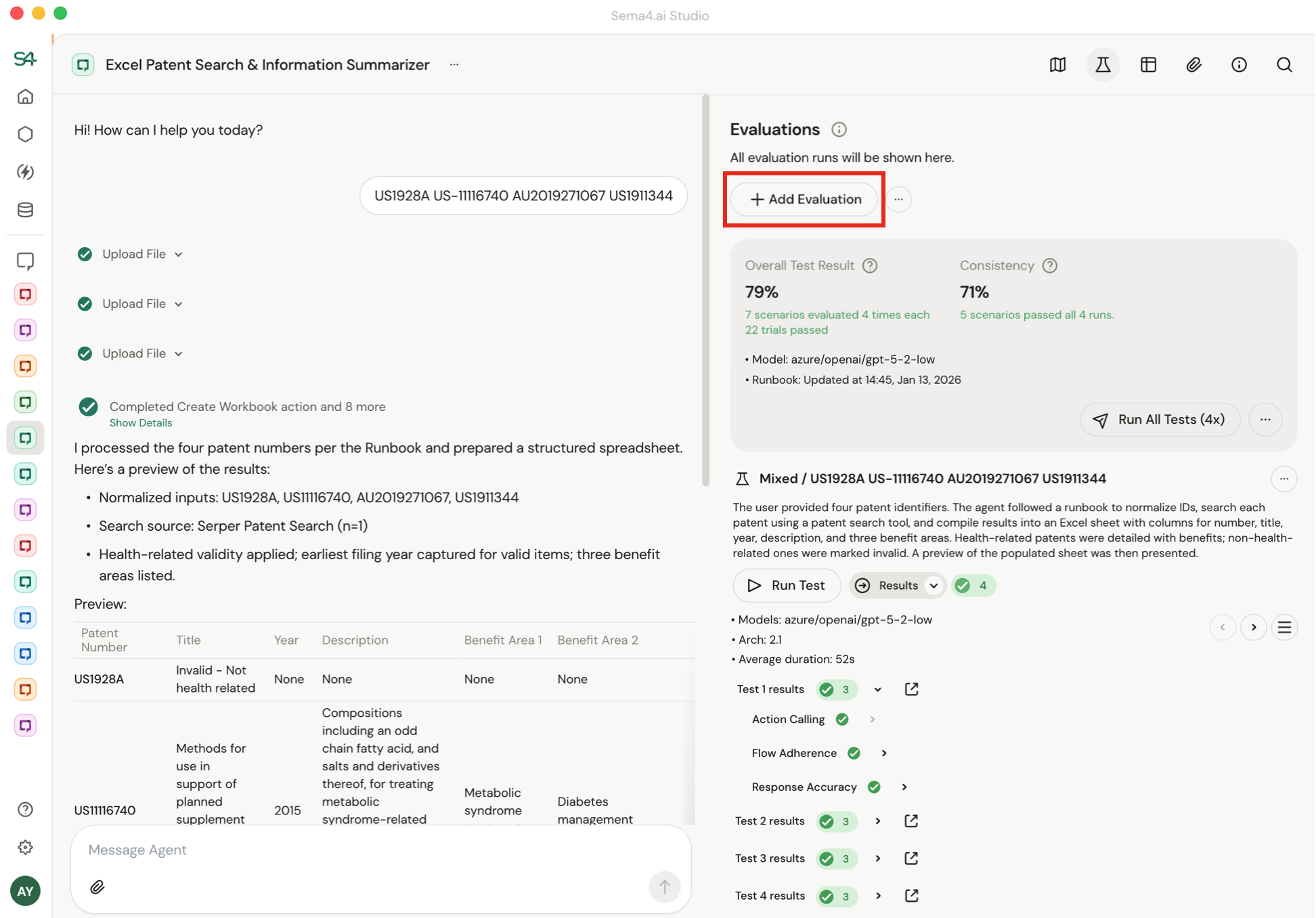
The system extracts outcomes and generates success criteria from the agent output and tool calls, for example:
- "Must extract health benefit"
- "Must call the reconciliation tool"
- "Output must contain account ID 293847"
The evaluation criteria appear in a text box. You can add, remove, or adjust criteria by editing or typing into the textbox.
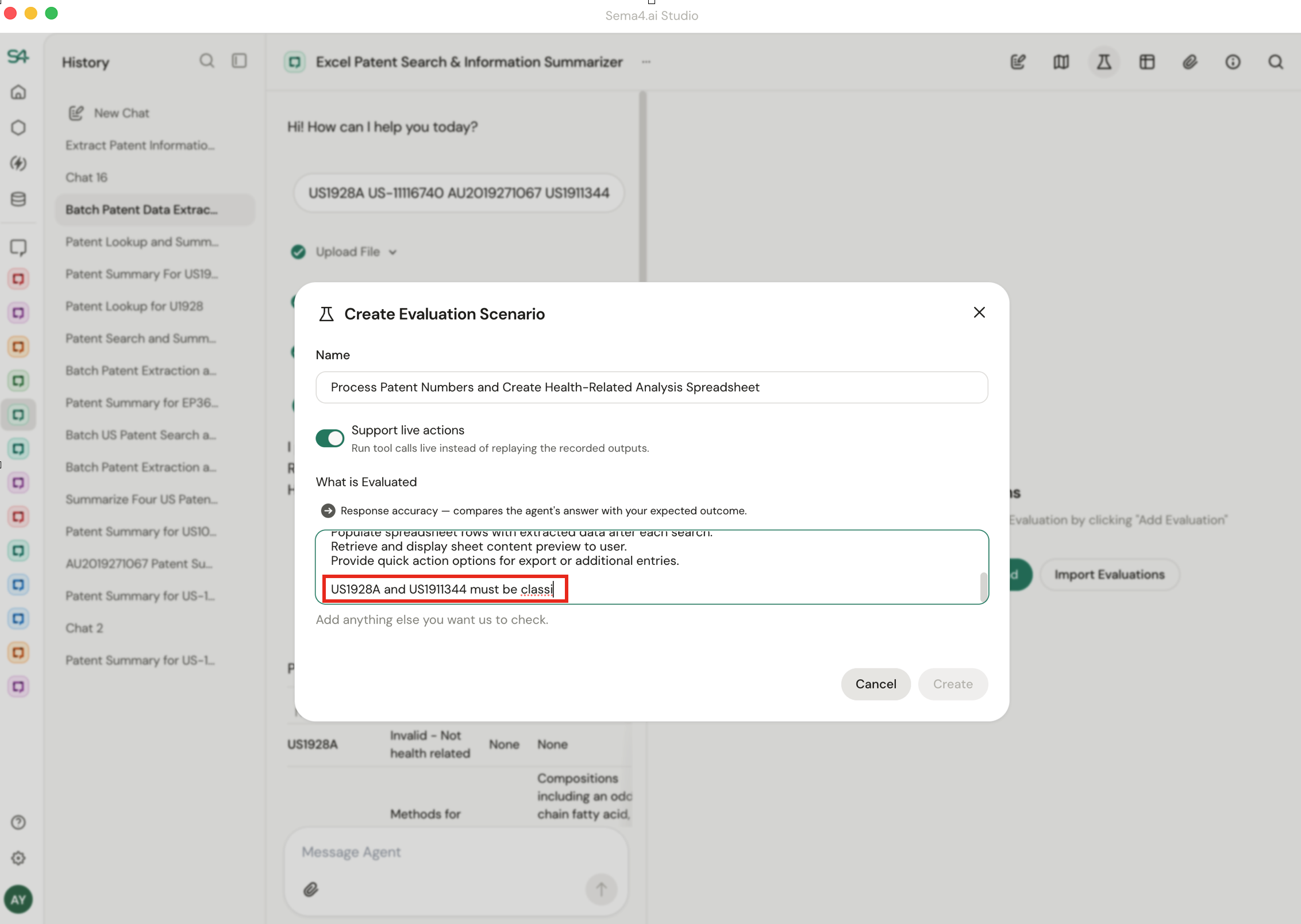
- Add criteria for stricter validation. For example, change "Create a table with results" to "Results table must include Patent #US-12354, classified as a non medical patent".
- Remove criteria when generated checks are too specific. For example, if a criterion says "Output filename must be report_2024-12-06.pdf", you might remove the date portion since the filename will change on each run.
Start by reading the generated criteria. If you're not sure if criteria need to be removed, run with the auto-generated criteria first.
Step 3: Choose Your Mode
When you run an evaluation, you choose whether tools execute for real or get simulated:
| Mode | Tools execute? | Success means |
|---|---|---|
| Live Run | Yes | Correct outcomes listed in the test description |
| Dry Run | No (replayed) | Agent must call exactly the same tools in the same order to reach the correct outcome |
Live Run is the default. It's the most flexible option - it focuses on agent outcomes rather than exact tool sequences, so your evaluations stay valid even if you change your agent's tools or configuration.
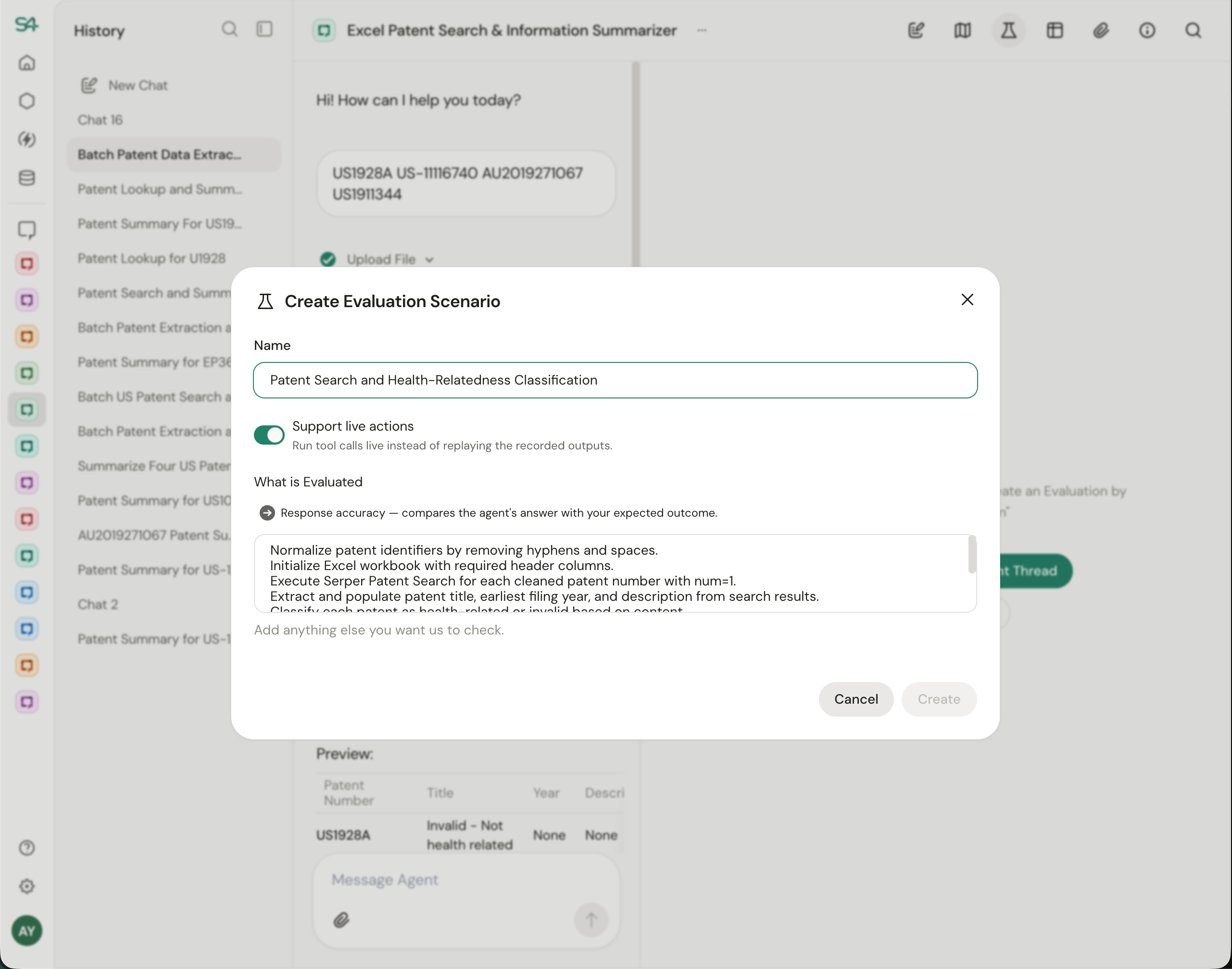
The other option is a Dry Run, which you can use by toggling the "Support live actions" switch.
Instead of executing tools live, it validates that the model calls the exact tools in the exact order with the correct parameters. When the model makes the right call, it receives the recorded response from your Golden Run, allowing the evaluation to continue through the full trajectory.
Use Dry Run when:
- You need completely deterministic execution (same tools, same order, every time)
- Re-running a golden scenario would send duplicate emails, create duplicate records, or consume one-time tokens
Step 4: Save
Your evaluation is complete and ready to run.
Running evaluations
Click Run on a single scenario or Run All for all evaluation scenarios created.
If you click "Run All", you'll get a high level accuracy and consistency number for your agent.
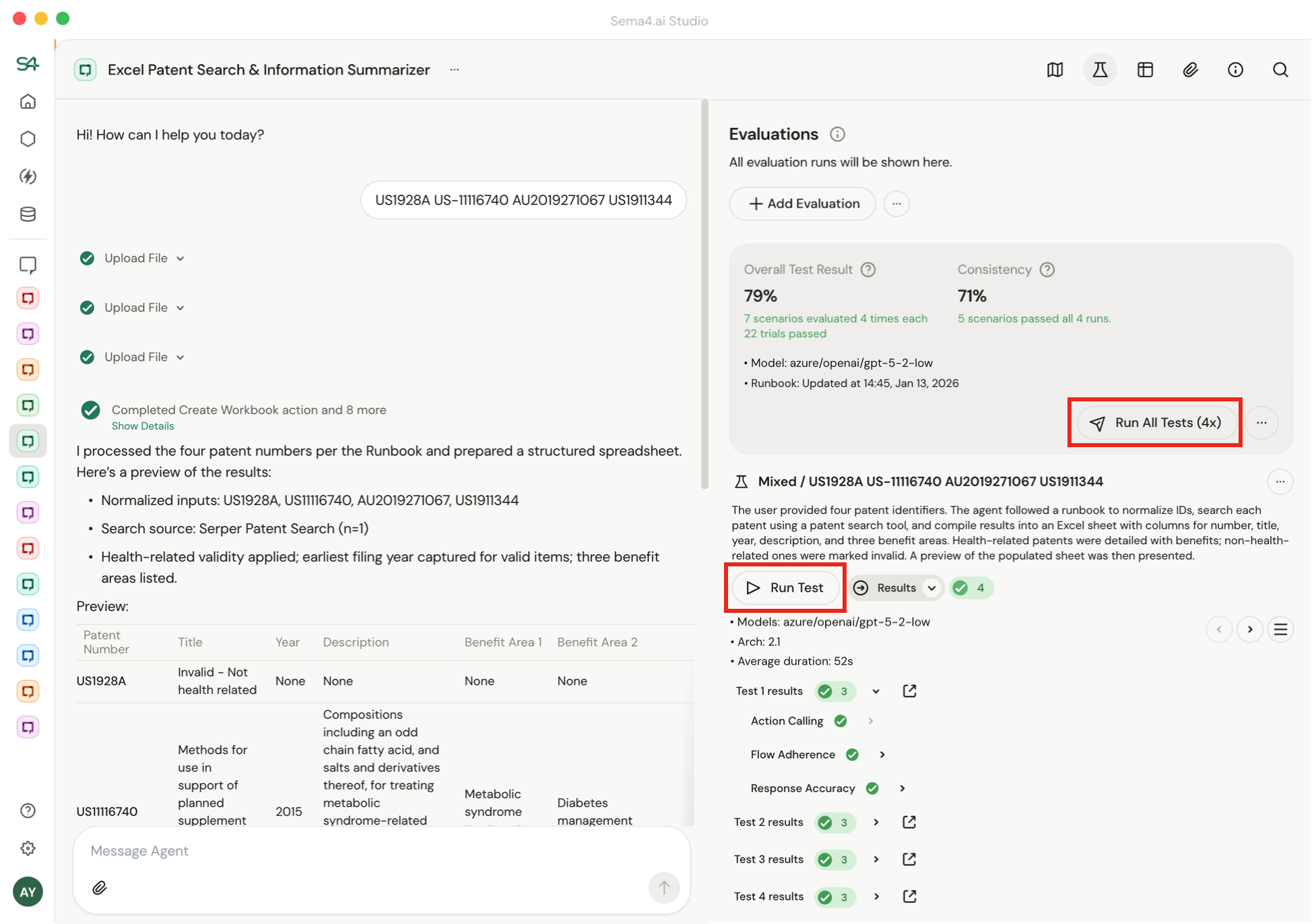
To change the default number of runs (4x for Run All, 1x for Run Scenario), click the "..." button.
Reviewing test results
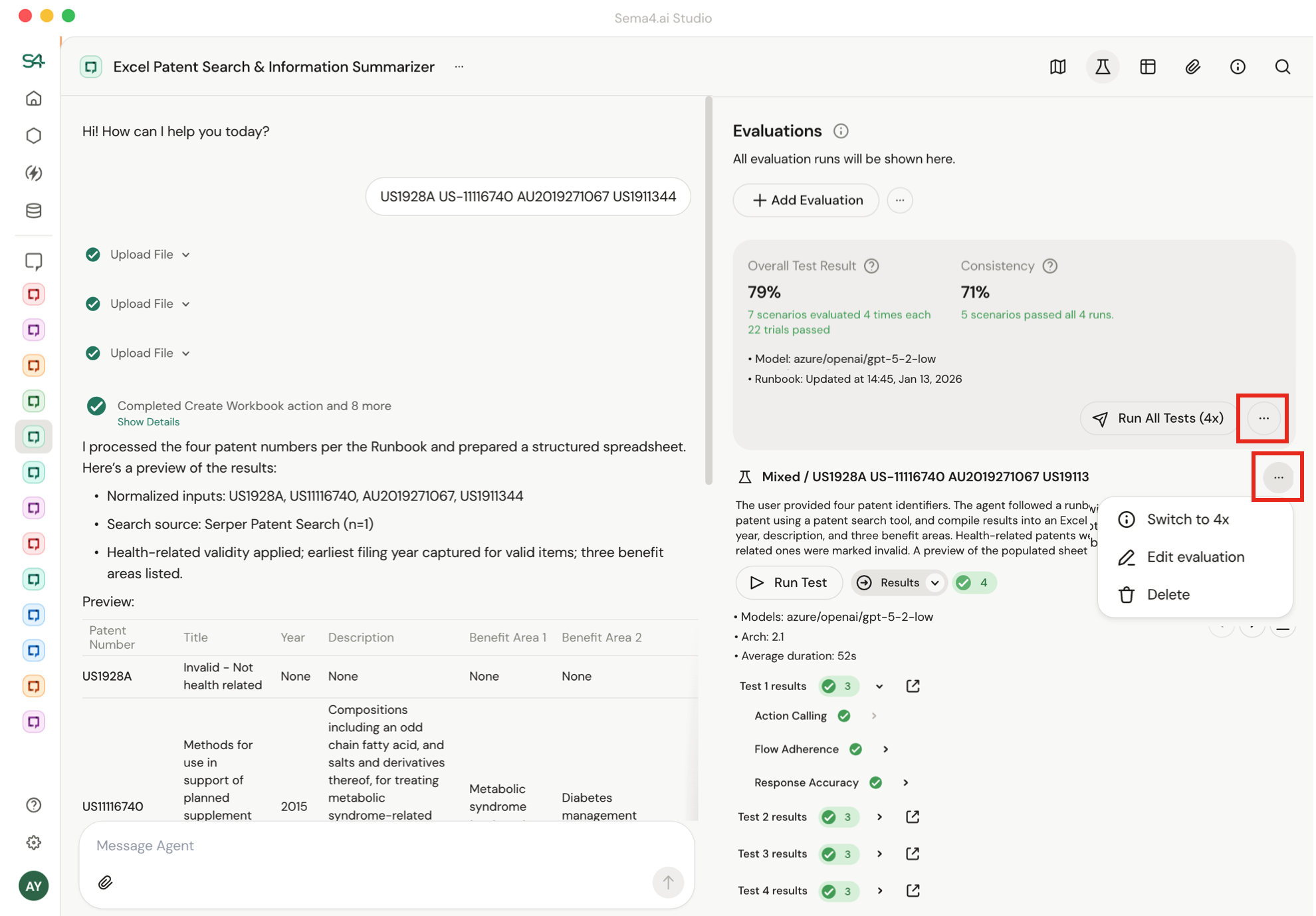
You can click into a run to see exactly what happened. Use the dropdown to jump between test runs - each run captures the model, runbook version, and duration, so you can compare how changes affected accuracy over time.
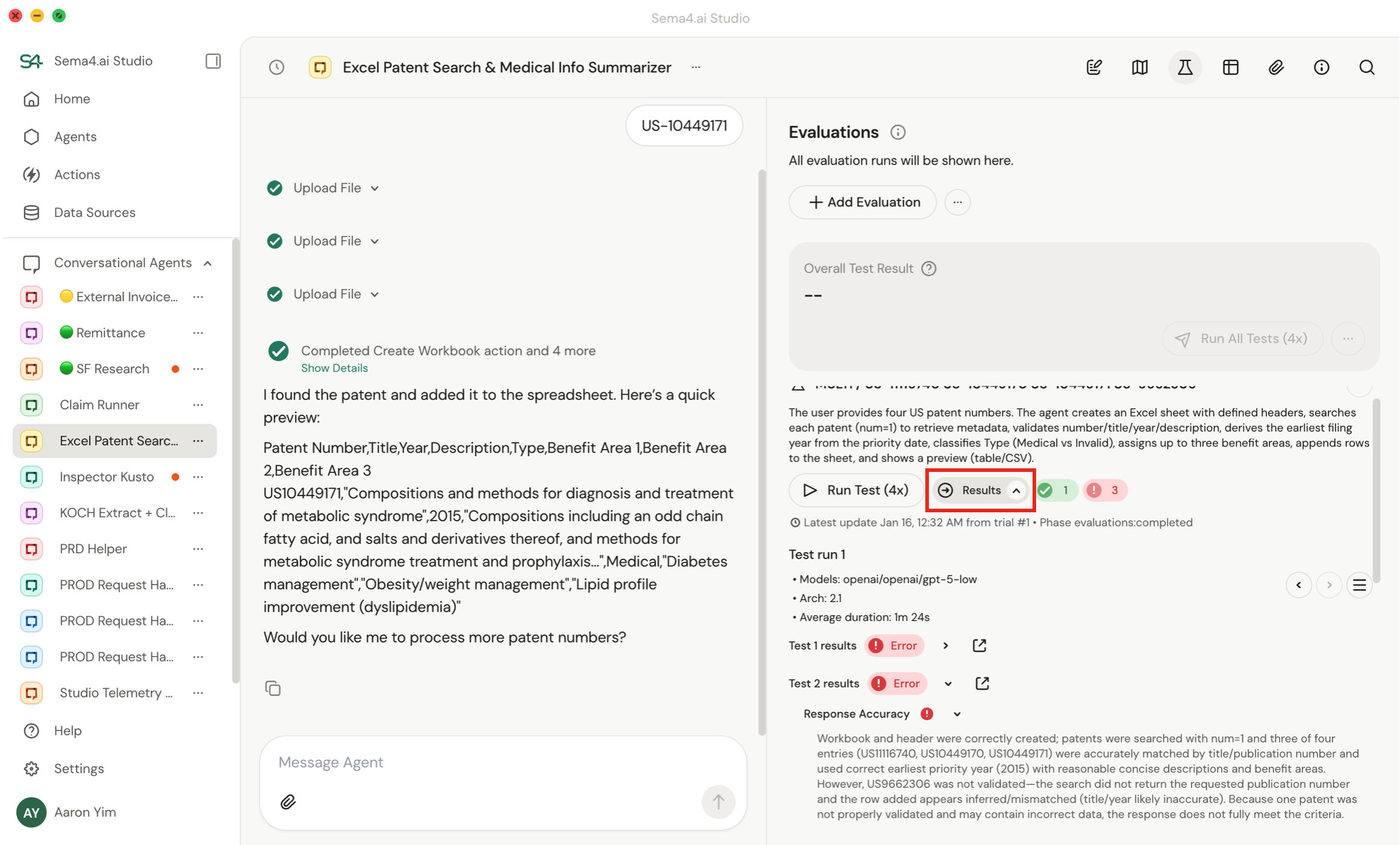
Each test run may execute multiple trials. Results show pass/fail per trial with a summarized explanation of why the run was determined to be a pass or fail.
Click the expand icon to read the full conversation thread including all tool calls and I/O.
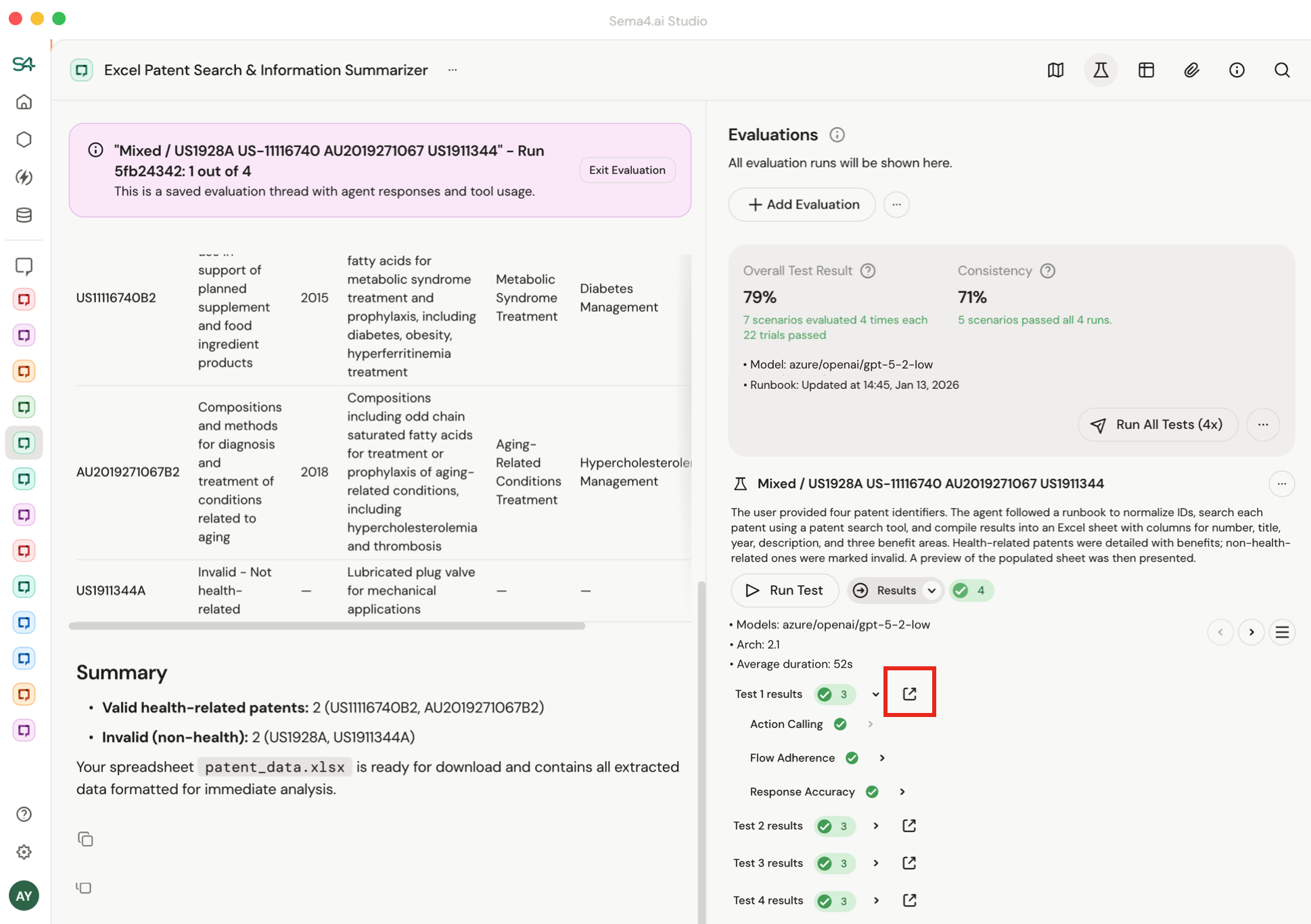
For deeper observability, test traces are sent to your OTEL endpoint alongside production traces.
Rate limiting
Evals run multiple trials in parallel for faster test execution.
If you see "throttled" status, your evaluation is hitting rate limits from your model provider. The system retries automatically - your evaluation will still complete, just slower.
If a trial fails with "Rate limit retries exceeded," your rate limits are too low to run even a single agent conversation. This will affect production, not just evaluations. Work with your admin to increase rate limits with your model provider.