Deploying Agents with Semantic Data Models
Semantic data models are included in the agent package, and automatically get deployed to the agent in the Work Room. You can find more information about deploying agents in general the Deploying Agents section.
Enterprise Edition / Agent Compute in AWS
When deploying agents with file-based semantic data models, no additional actions are required! The agent is good to go right after the deployment is complete.
When deploying an agent with semantic data models in Enterprise Edition / Agent Compute in AWS, you will only need to take actions outlined below in the case of database connected semantic data models.
You will need to be either Administrator or Operator in the workspace to be able to deploy and configure agents with semantic data models.
Deploy an agent
Start by just normally deploying the agent from Control Room Gallery to your desired workspace.
View agent details
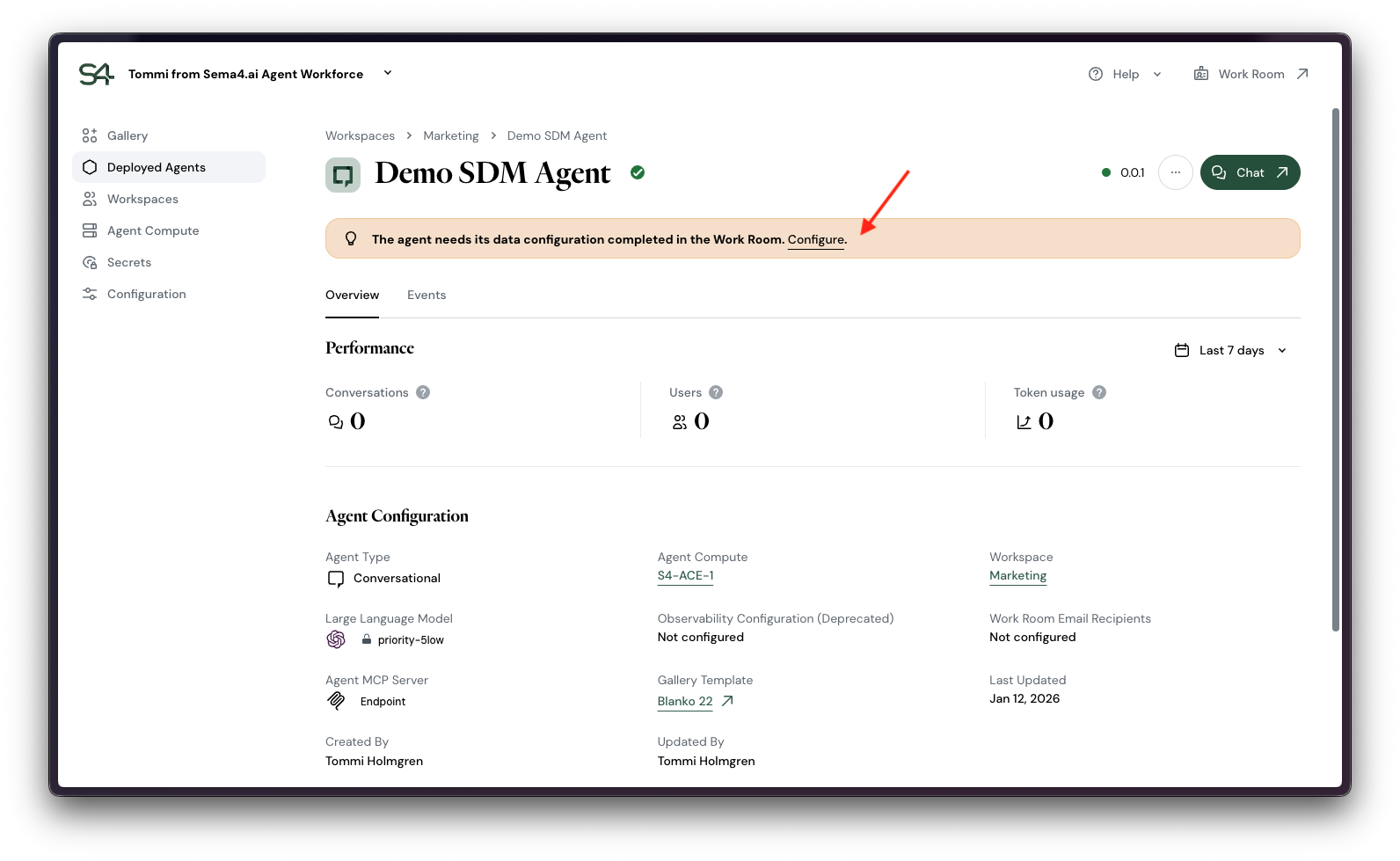
The agent details view will contain an alert banner if agent contains a semantic data model that is not yet connected to a data source. Click Configure that takes you to Work Room view of the agent.
View connection status
In the Work Room view, you can see the status of the connection to the semantic data model in the information side panel. You will see that the connection is not yet established, indicated by the red exclamation mark icon. Hover over the name of the semantic data model to see the details.
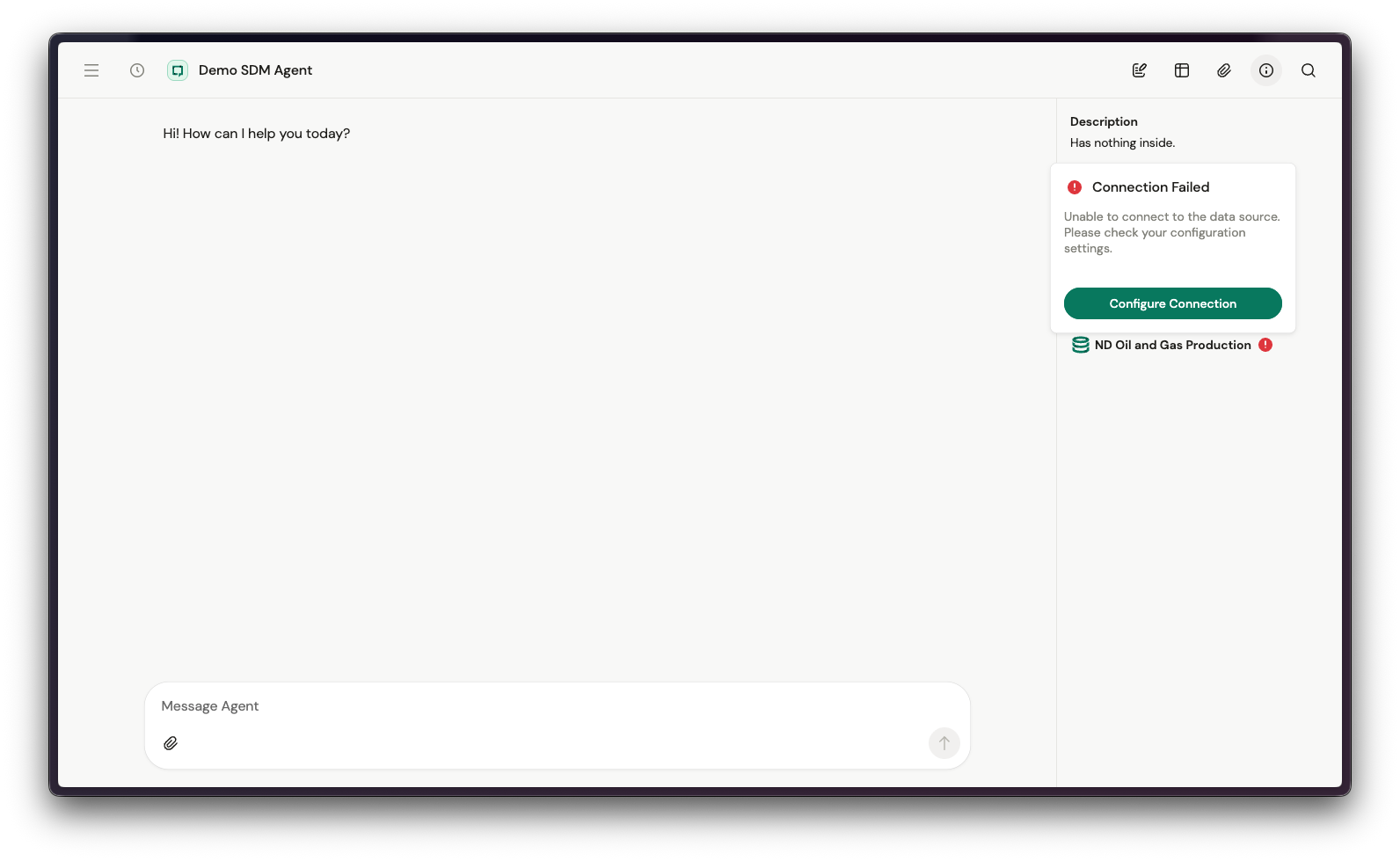
Click Configure Connection to proceed.
Choose a connection
You'll be able to choose a database connection from the dropdown list. If you don't see the connection you are looking for, you can click Create New to create a new connection.
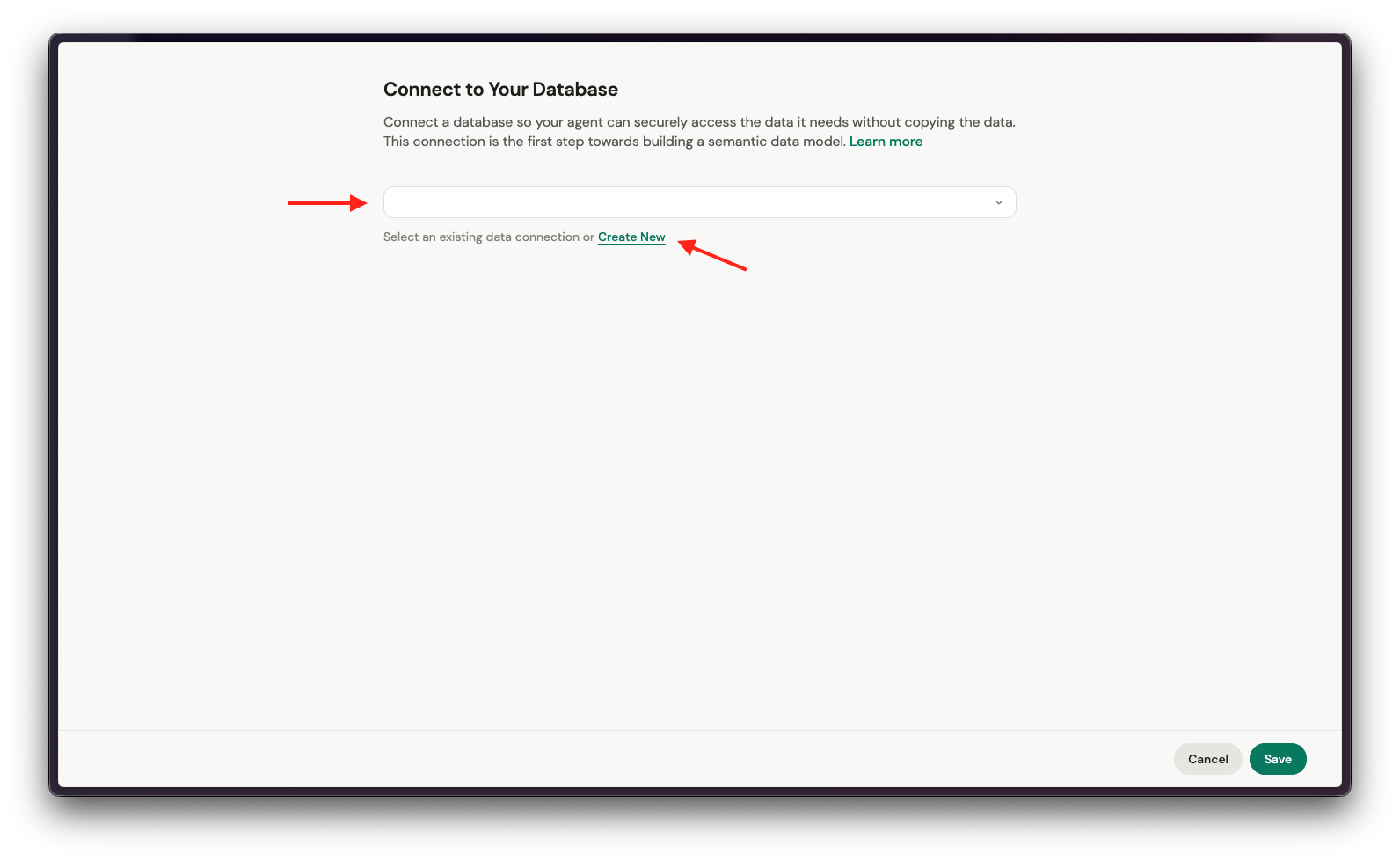
In case you have already configured the exact same connection name as in the Semantic Data Model in Studio, this connection will be automatically selected for you.
First version of Semantic Data Models does not reuse the connections that you have configured in Control Room. These connections are currently managed separately in Work Room only, but will soon merge into the same connection management as in Control Room.
Once you have chosen the connection, system will validate that the tables/views and columns required by the semantic data model are found through the connection. If verification is successful, click Save to save the connection.
If the verification fails, you will see an error message along with the details of the mismatch. You can click Edit Connection to edit the connection and try again.
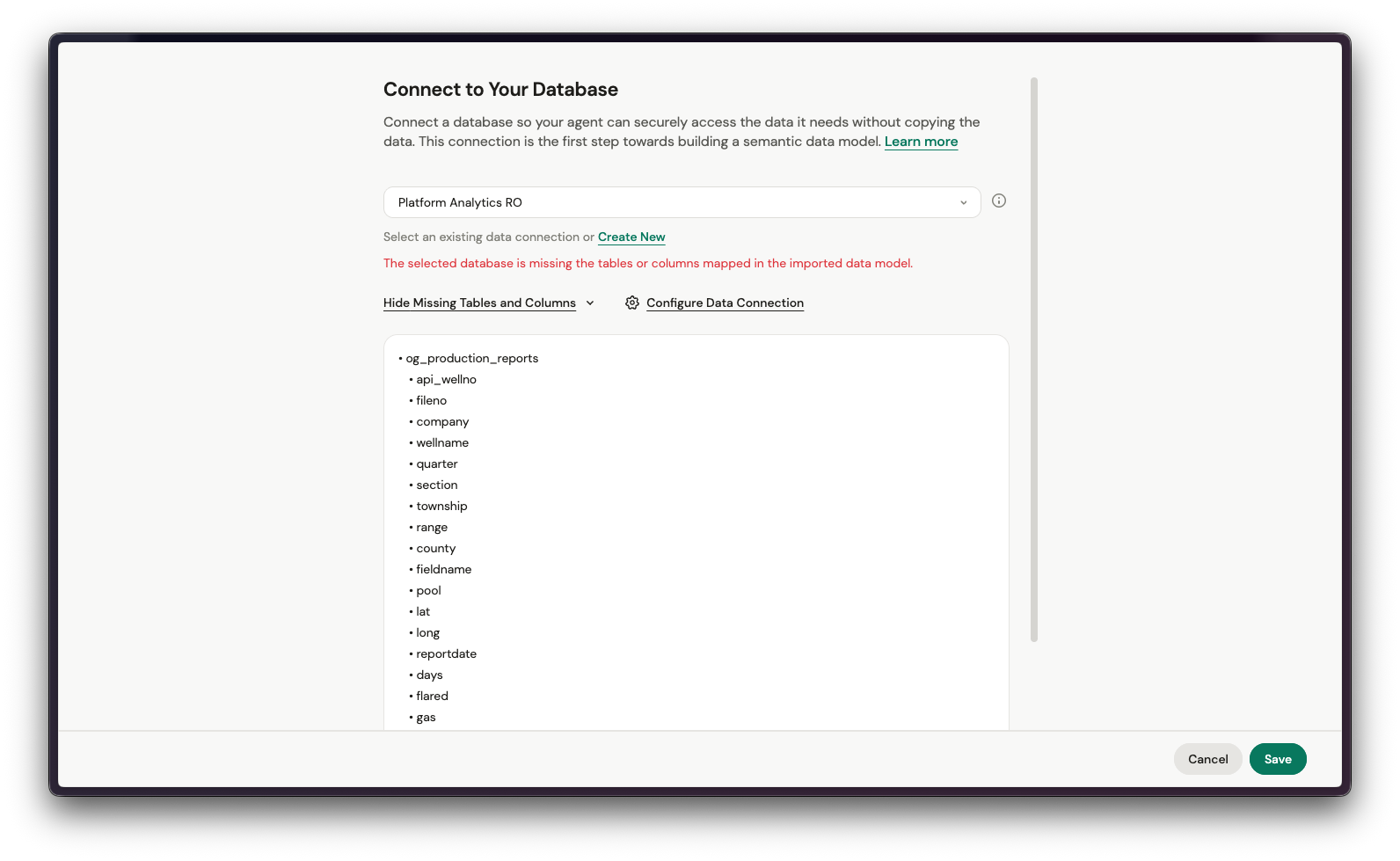
Once the connection is validated successfully, hit Save and you (and all the agent users) are good to go!
Team Edition / Snowflake
Details coming soon.