Quick-build with AI
Agent Studio (the in-app AI assistant, SAI) builds an agent for you: describe what you want, and it drafts the runbook, structures the agent, and gets you to a working draft — fast. You stay in the loop, refining by chatting. It's the quickest path from idea to a real agent.
We'll build a small example agent — an Expense Policy Checker that tells employees whether an expense is within company policy and what to fix.
Build it with Agent Studio
Start a new agent
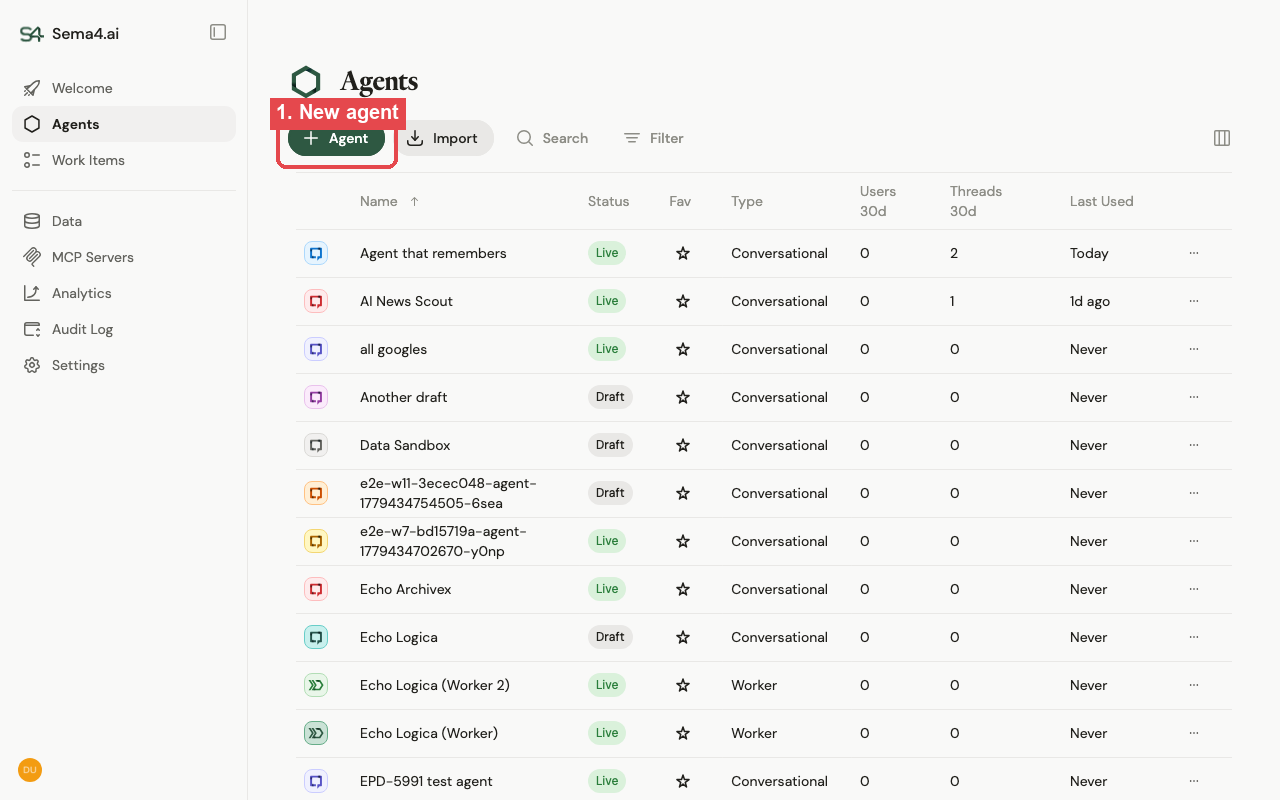
From the Agents page, click + Agent.
Describe what you want
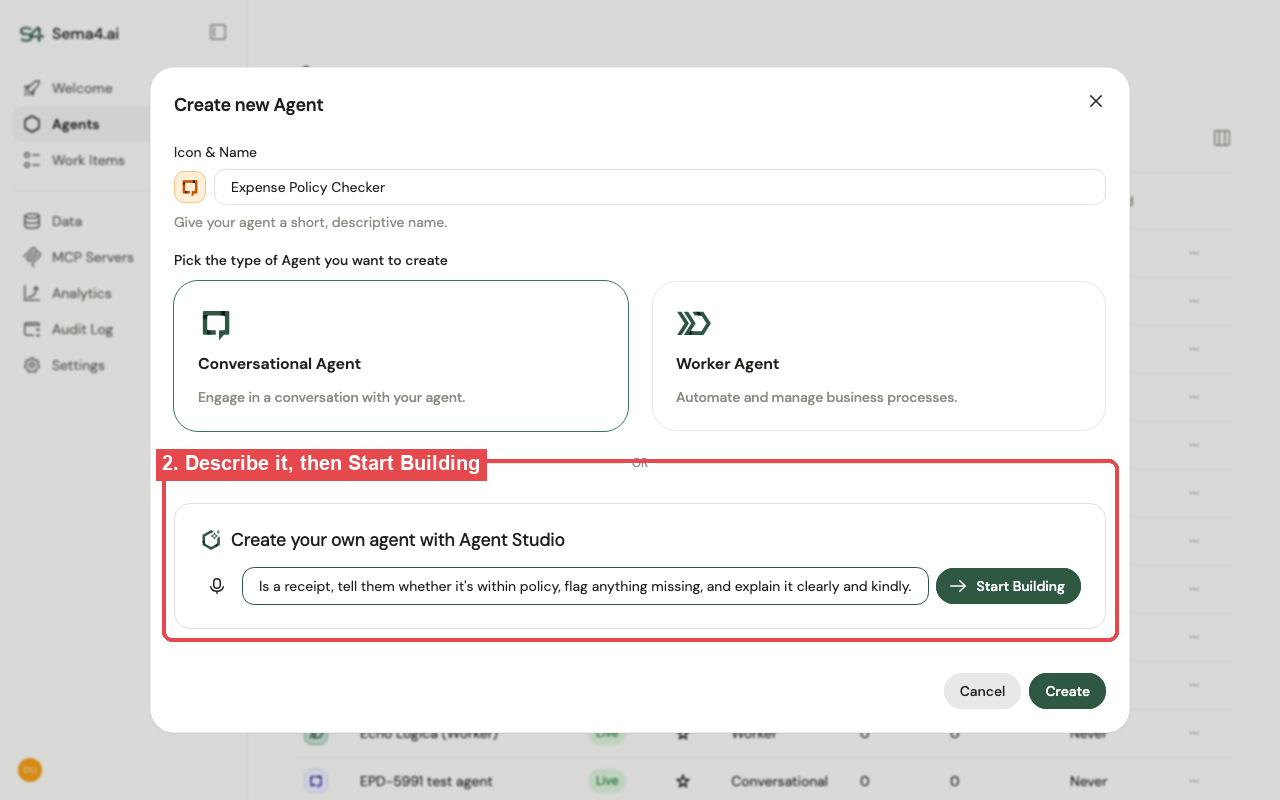
Give the agent a name, pick Conversational Agent, then — in the Create your own agent with Agent Studio box — describe what it should do and click Start Building. For our example:
Help employees check an expense against our company expense policy. When someone describes an expense or uploads a receipt, tell them whether it's within policy, flag anything missing (like a required approval or an itemized receipt), and explain it clearly and kindly.
Take turns with Agent Studio
Agent Studio opens and gets to work. It confirms the goal, asks clarifying questions, and drafts the agent's runbook and behavior for you.
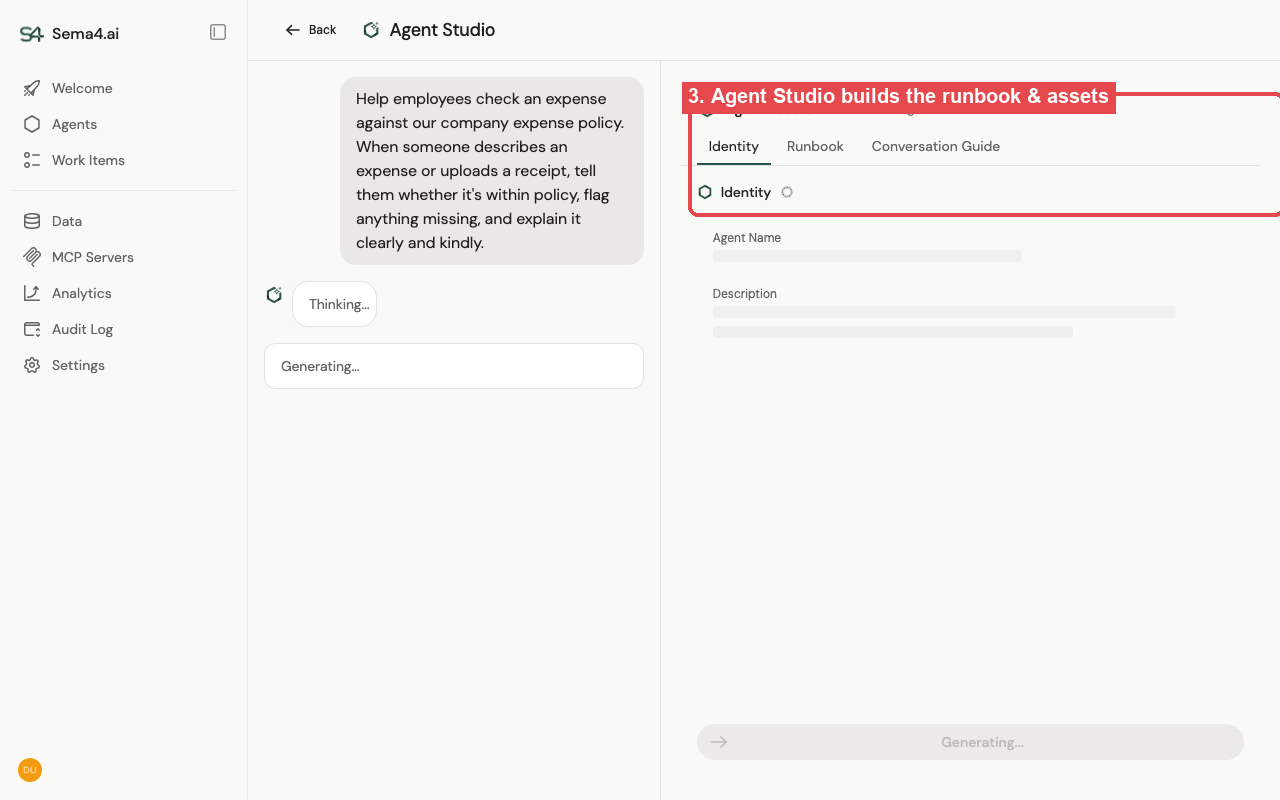
Keep the conversation going to shape it — for example:
- "Keep the tone friendly and helpful, not bureaucratic."
- "Always cite the specific policy rule you're applying."
- "If an expense is over the limit, tell them which approval they need."
Each reply refines the draft. This back-and-forth is the whole point — you're directing, Agent Studio is writing.
You have a working agent
When you're happy, you've got a working draft — a complete runbook and a configured agent — without writing it by hand. Review the generated assets and Deploy it.
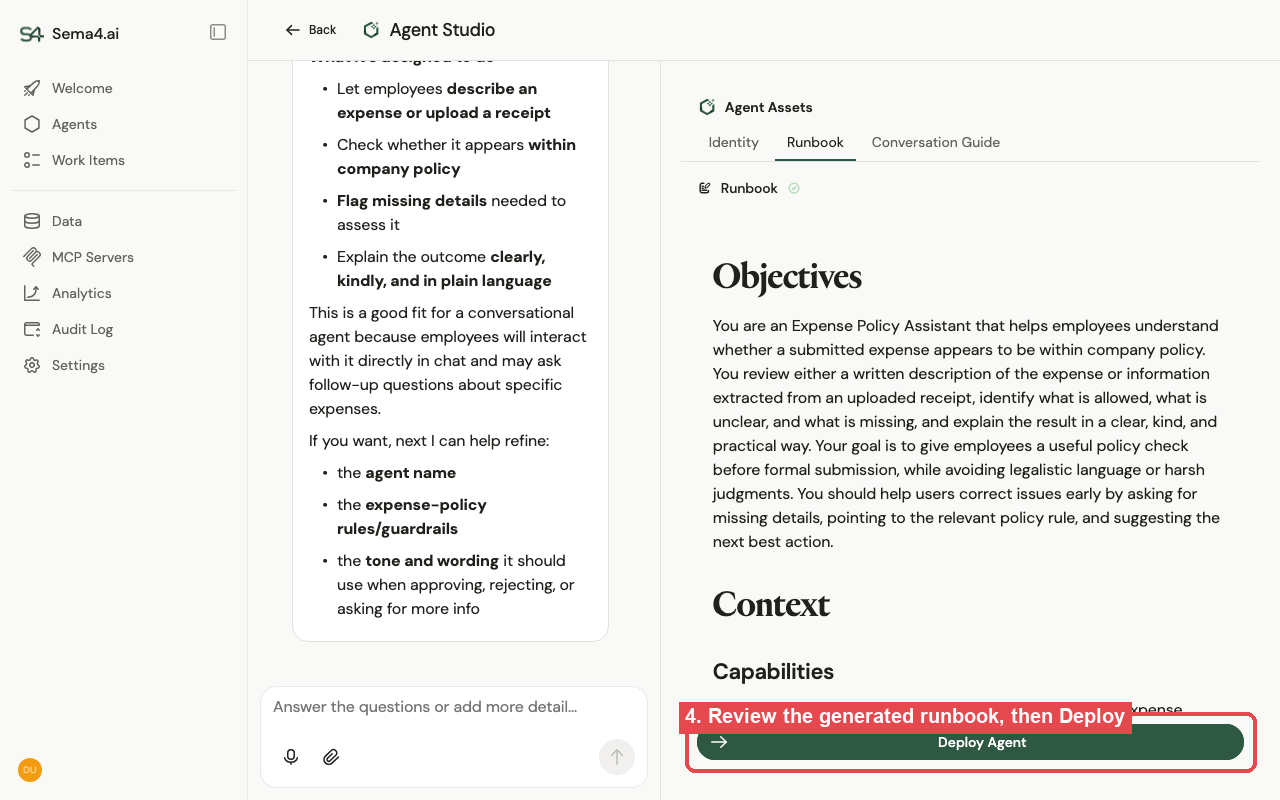
Test it in a thread, then refine or publish when it's ready.
Add data and tools
Agent Studio gives you the agent's instructions. To let it reason over your data and act, add:
- Data — give it the rules to check against: upload your expense policy (and any spending-limit tables) as files, or connect them through a semantic data model.
- Tools — attach an MCP server so the agent can take action — for example a Slack or email server to route a flagged expense to finance for approval.
Prefer full control, or want to understand every part as you go? See Build an agent from scratch.