Update the Sema4.ai application
How you roll out a new release depends on how your deployment was installed. The Release Notes list each release and the image tag to update to.
Embedded cluster (VM)
If Sema4.ai was installed as a single-node embedded cluster on a VM, updates are managed through the KOTS Admin Console — the admin URL you received after deployment.
- Open the Admin Console URL.
- It shows when a new version is available. Review the release.
- Click Deploy to roll out the new version.
Keep the Admin Console URL and its credentials from your initial deployment — that's where all version updates are applied for embedded-cluster installs.
EKS / AKS (Helm)
If Sema4.ai runs on your own EKS or AKS cluster, updates are done with Helm, guided by the Enterprise Portal. The portal generates the exact, copy-paste commands (credentials, registry login, and the Helm upgrade) for your target version — always use those.
Do not run preflight checks as part of this upgrade. Skip any preflight
step — go straight from the credential/login commands to helm upgrade.
Step 1: Open the update in the Enterprise Portal
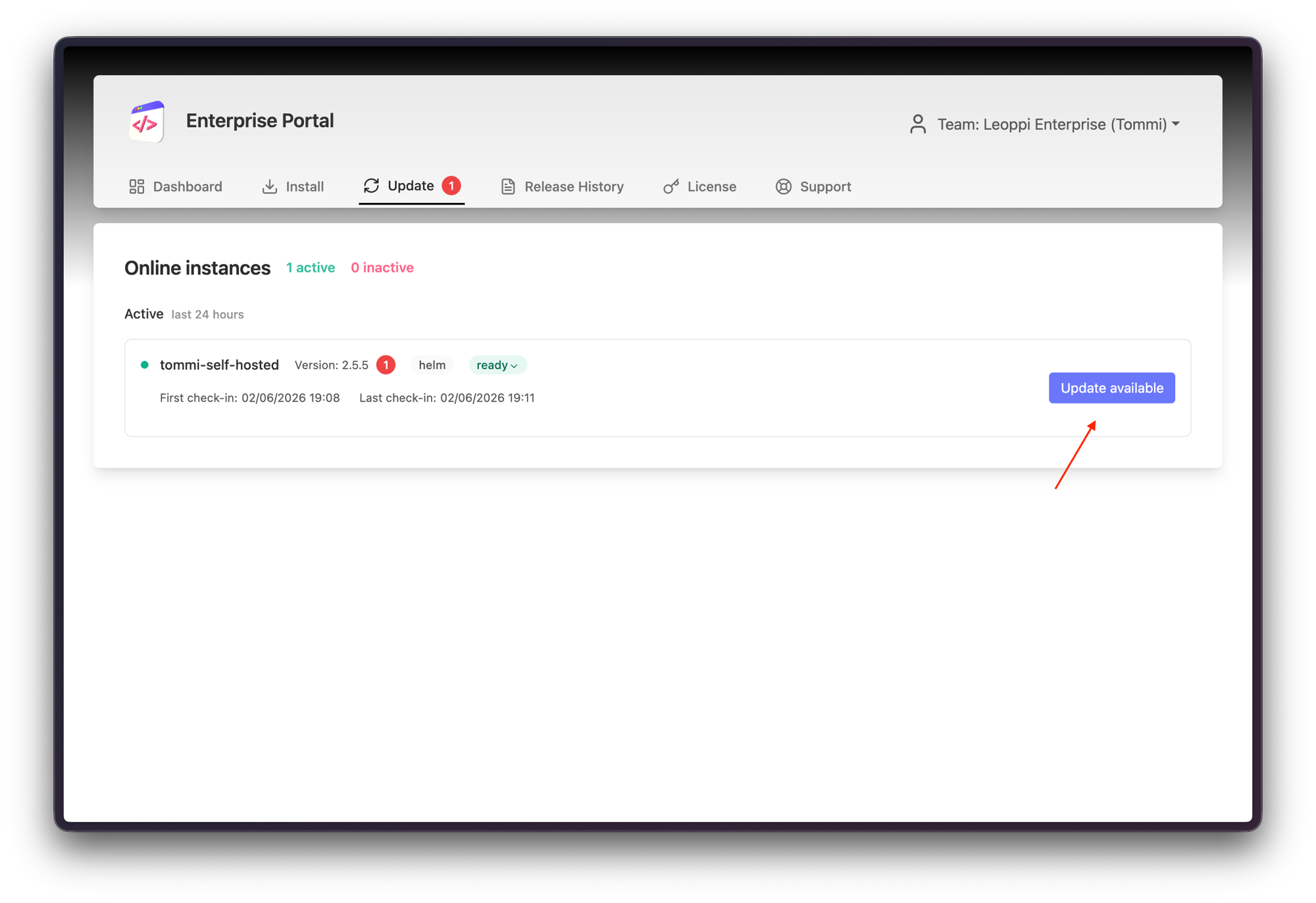
Open the Enterprise Portal, go to Update, find your instance, and click Update available. Confirm the currently installed version and the target update version (the Release Notes are linked here).
Step 2: Log in to the registries
Copy and run the Export credentials and log in commands shown in the portal.
Step 3: Run the Helm upgrade
Run the Helm upgrade command from the portal, replacing the version if needed. Two things to get right:
- Use the same values file you deployed with (for example
my-values.yaml). Reusing it preserves your configuration — don't substitute a different or empty file. - Add your namespace. The command you copy from the portal does not include it, so append
--namespace <your-namespace>yourself:
helm upgrade spar oci://registry.sema4.ai/sema4ai/prod-selfhosted/spar --version 2.5.6 --values my-values.yaml --namespace <your-namespace>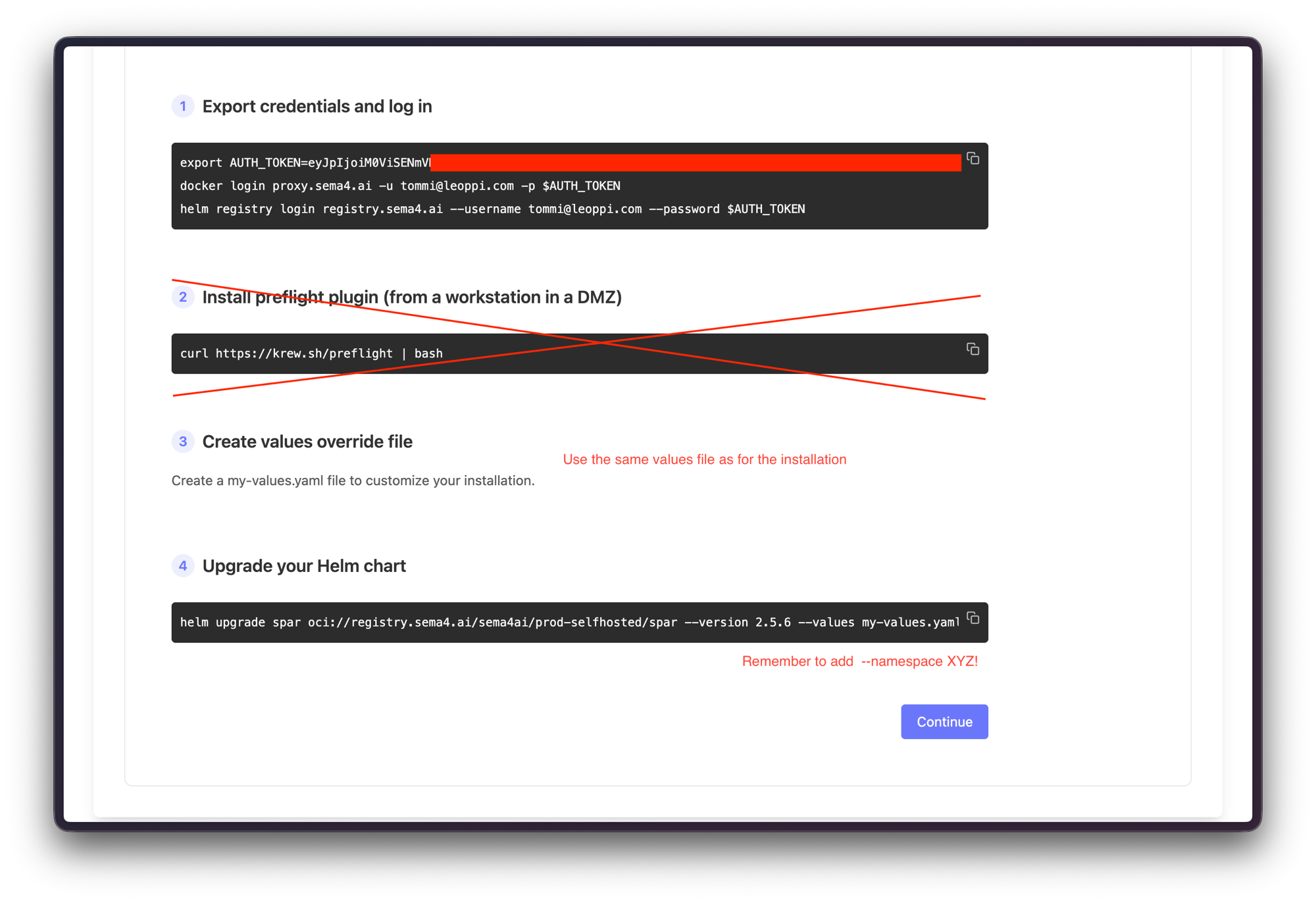
Step 4: Verify
Wait for the upgrade to complete, then go back to the portal and confirm the instance is healthy and shows the new version. Open the application and do a quick smoke test, and review the Release Notes for any version-specific changes.
Verify the upgrade
- Instance shows as online
- New version is displayed
- App loads successfully
- Login works
- Key workflows still work
Troubleshooting
- Resources land in the wrong place / "not found" — the copied command omits the namespace; add
--namespace <your-namespace>. - Configuration changed after upgrade — you used a different values file. Re-run with the same
my-values.yamlfrom your original deployment.