Build an agent from scratch
Build an agent yourself, step by step, for full control over every part — its runbook, data, tools, and settings. More involved than quick-building with Agent Studio, but you decide exactly how the agent works.
We'll build a Worker agent — one that runs unattended, processing work items from a queue. Our example is an Invoice Processor: each work item is an incoming invoice, and the agent codes it against the shared Meridian Capital Partners accounting data from the demo agents.
Building a Conversational agent is the same flow, minus the work-item and schedule steps — you chat with it instead.
Steps
Create a Worker agent
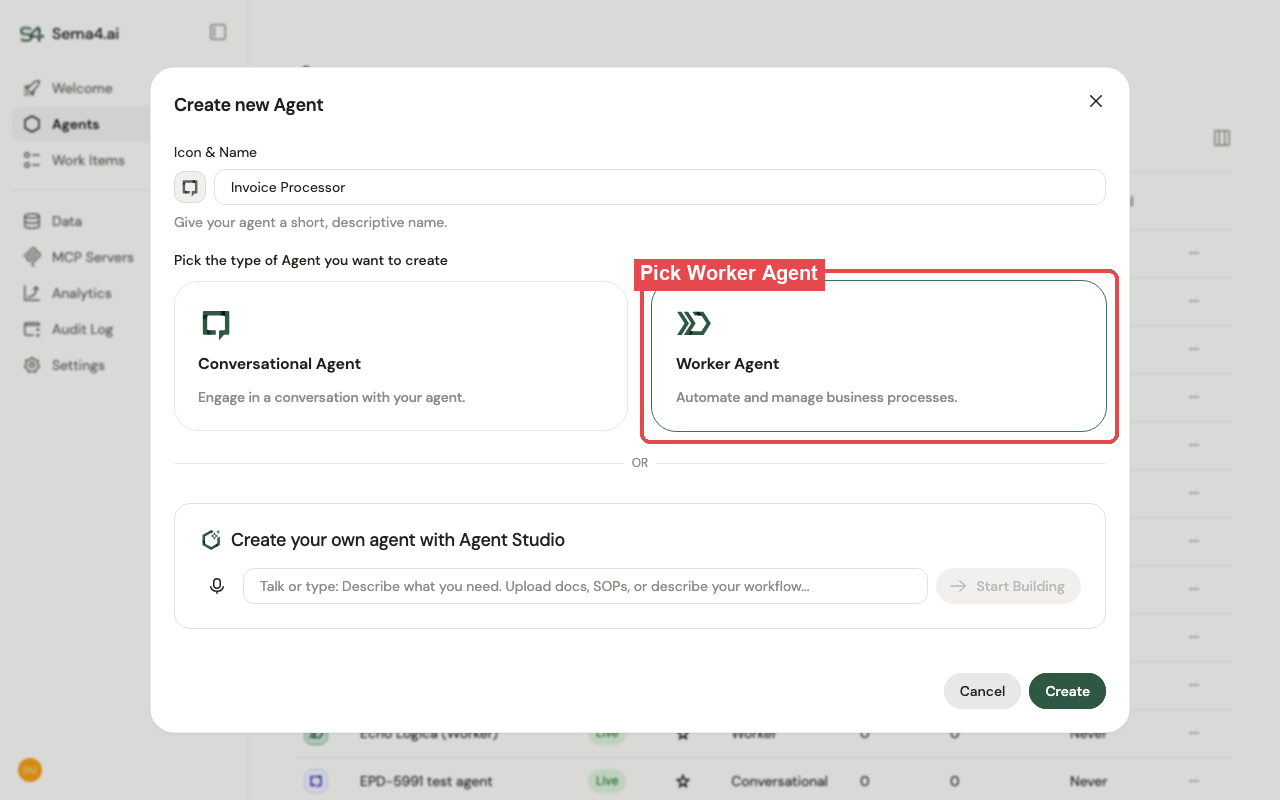
From the Agents page, click + Agent, name it (e.g. "Invoice Processor"), pick Worker Agent, and create it. A Worker agent is autonomous and queue-driven: it processes one work item at a time with no one watching.
Write the runbook
The runbook is the agent's instructions for handling a single work item, unattended — write it like an SOP. For the Invoice Processor:
- Objective — code each incoming invoice to the right GL accounts and cost centers.
- Steps — extract the invoice, match the vendor, look up how similar invoices have been coded, and assign a GL account and cost center to each line.
- Outcome rules — the most important part of a Worker runbook (see below).
Manage the work-item status
Every work item moves through a tracked lifecycle — Pending → Executing → Completed / Error / Needs review — and your runbook decides where each one lands:
- Complete it when the work is done and the agent is confident.
- Send it to Needs review when a human should decide — a new vendor, an anomalous amount, a possible duplicate, or a low-confidence result. The item pauses; a person can fix it and continue it, or restart it.
- Error is for something the agent genuinely can't handle.
Spell these rules out explicitly — e.g. "if the vendor isn't in the history, flag for review; never auto-code a new vendor." A good Worker runbook is mostly about when to act vs. when to escalate.
You can still use Agent Studio to help draft or refine the runbook here — building from scratch and AI assistance aren't mutually exclusive.
Connect data
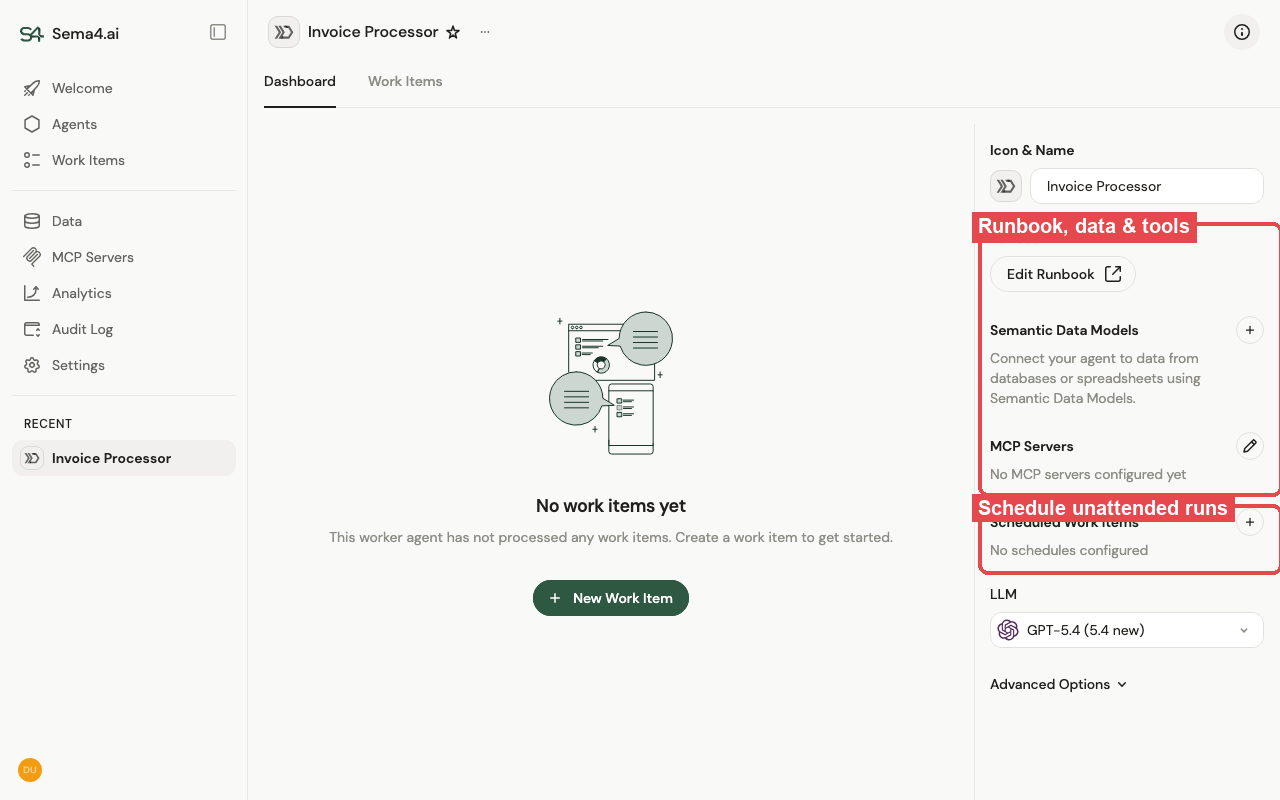
Attach a semantic data model so the agent can reason over your data in natural language. We'll reuse the shared Meridian AP data from the demo — the model over vendors, invoices, invoice_lines, gl_accounts, and cost_centers. From the agent, open Configure Data Models, connect to the AP data, and attach the model. Now the agent can match vendors and pull historical coding without anyone writing SQL.
The agent's runbook, data, tools, and schedule all live in its config panel:
Add tools (MCP servers)
Attach MCP servers for any actions the agent needs — for example posting a summary to Slack or writing results back to a system.
Worker agents support only non-user-authenticated MCP servers. Work items are shared and aren't tied to a signed-in person, so tools that act on behalf of an individual user can't be used — give Workers workspace-level servers.
Test with work items
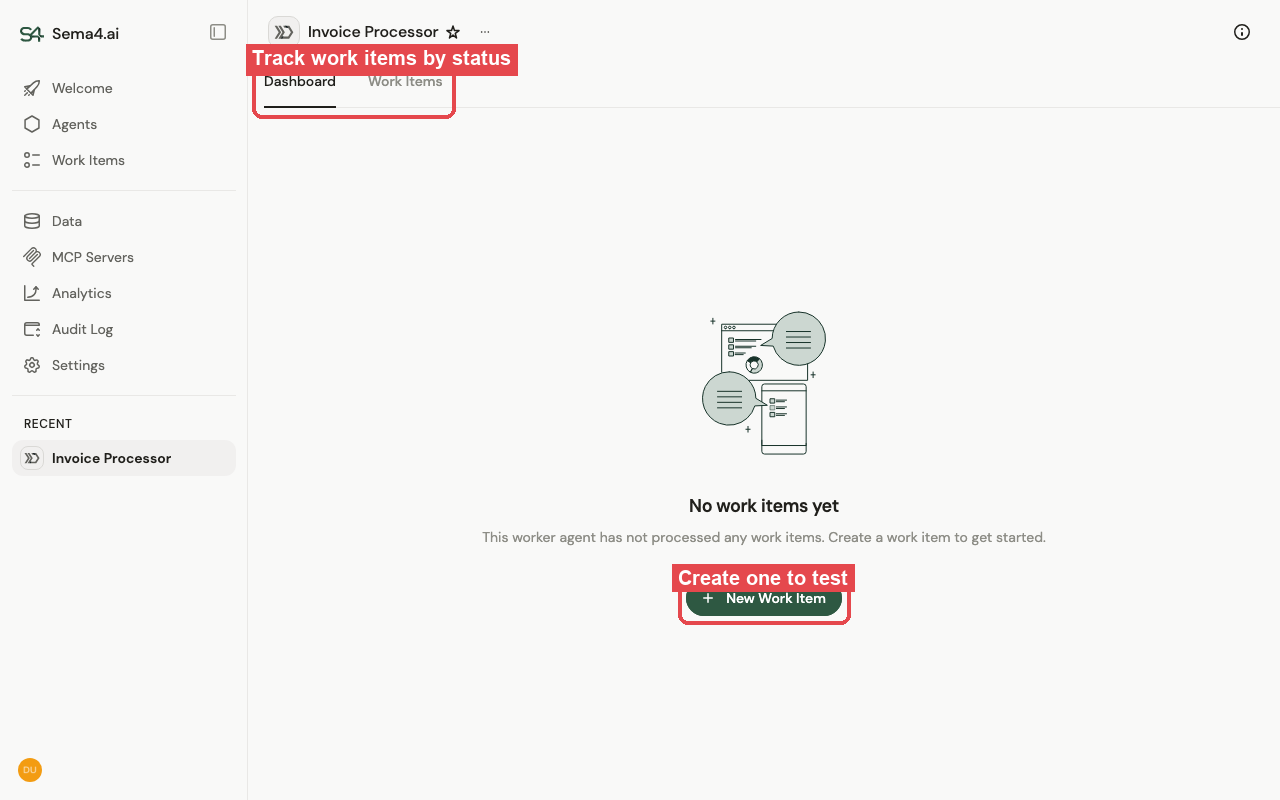
Create a few work items to run it end to end:
- Upload a file — each file becomes a work item, or
- Create work items via the API.
Watch them move through the lifecycle on the agent's dashboard — the ones that completed, and any that landed in Needs review for you to resolve. Open a work item to see exactly what the agent did. Iterate on the runbook until the outcomes are right.
Create a schedule
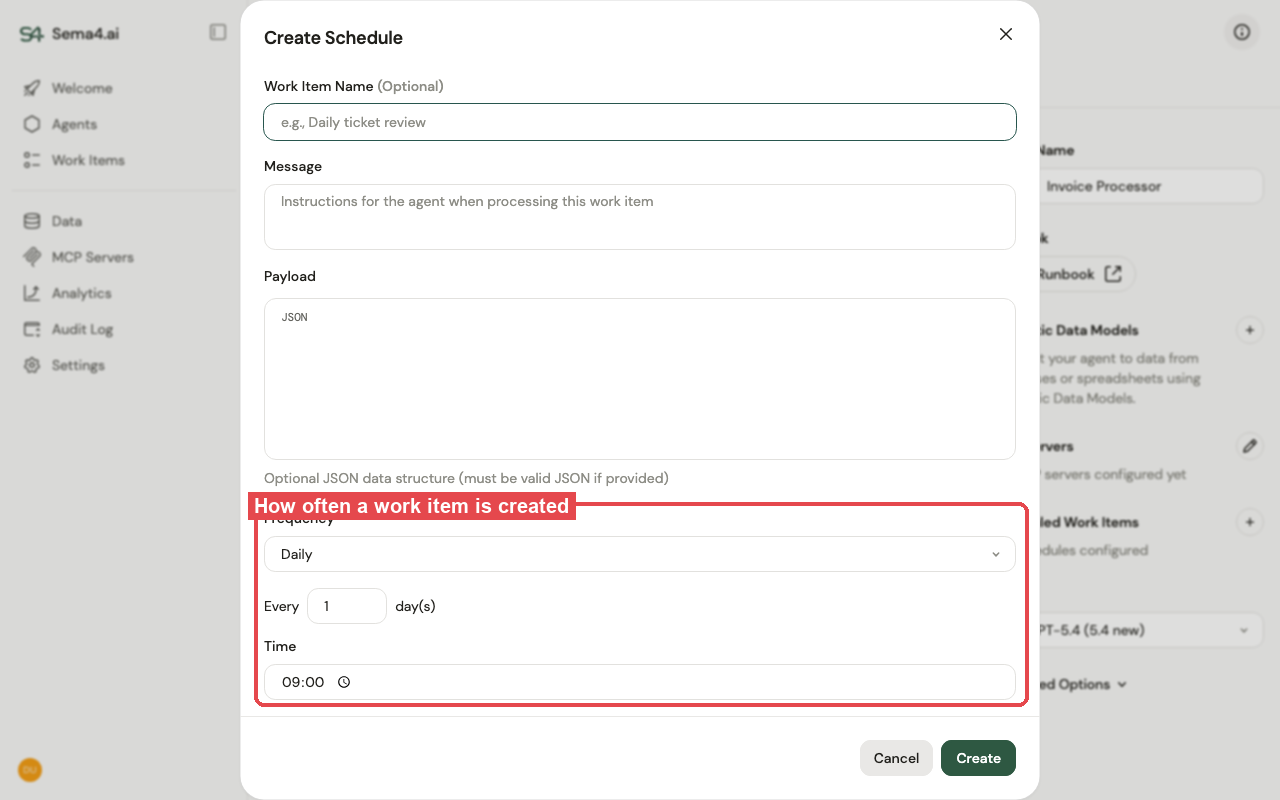
For hands-off operation, add a schedule so work items are created automatically on a cadence — for example every morning. Each scheduled run creates a work item the agent picks up, turning the agent into an unattended, recurring process. Give the scheduled work item a name, an optional message and payload, and set how often it runs.
Go live
You've been working in a draft the whole time. When the agent is processing work items correctly, publish it — see Versioning & lifecycle.