Versioning & lifecycle
An agent has a published (live) version that people use, and a draft you edit. This lets you improve an agent, test it, and release it — without disrupting anyone mid-conversation. The lifecycle applies to both agent types: conversational agents and worker agents.
The draft → publish flow
Edit
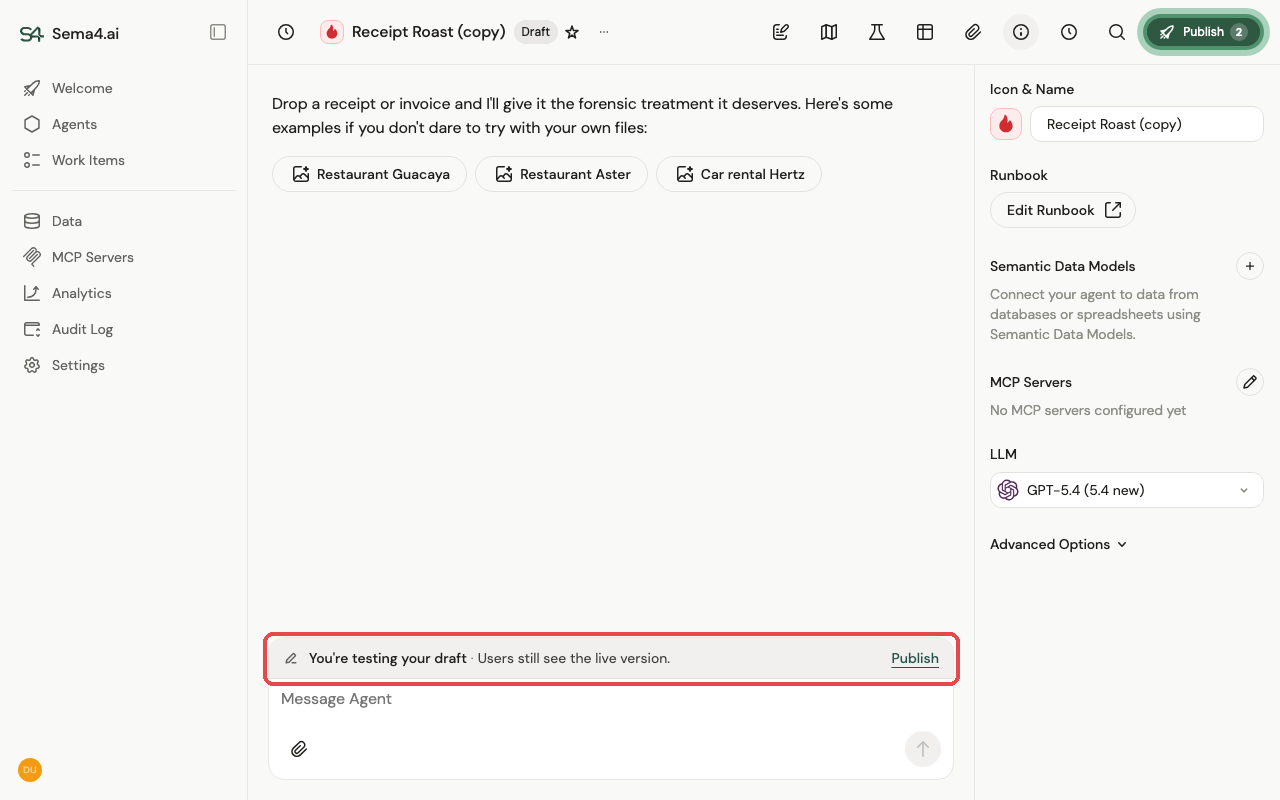
Click Edit agent to put the agent into a draft. Every change you make — runbook, tools, data, settings — applies only to the draft. Users keep using the live version, and a banner reminds you that you're testing your draft.
Test
Chat with the draft to try your changes. Draft conversations are private to you — users never see them, so you can iterate freely.
Publish
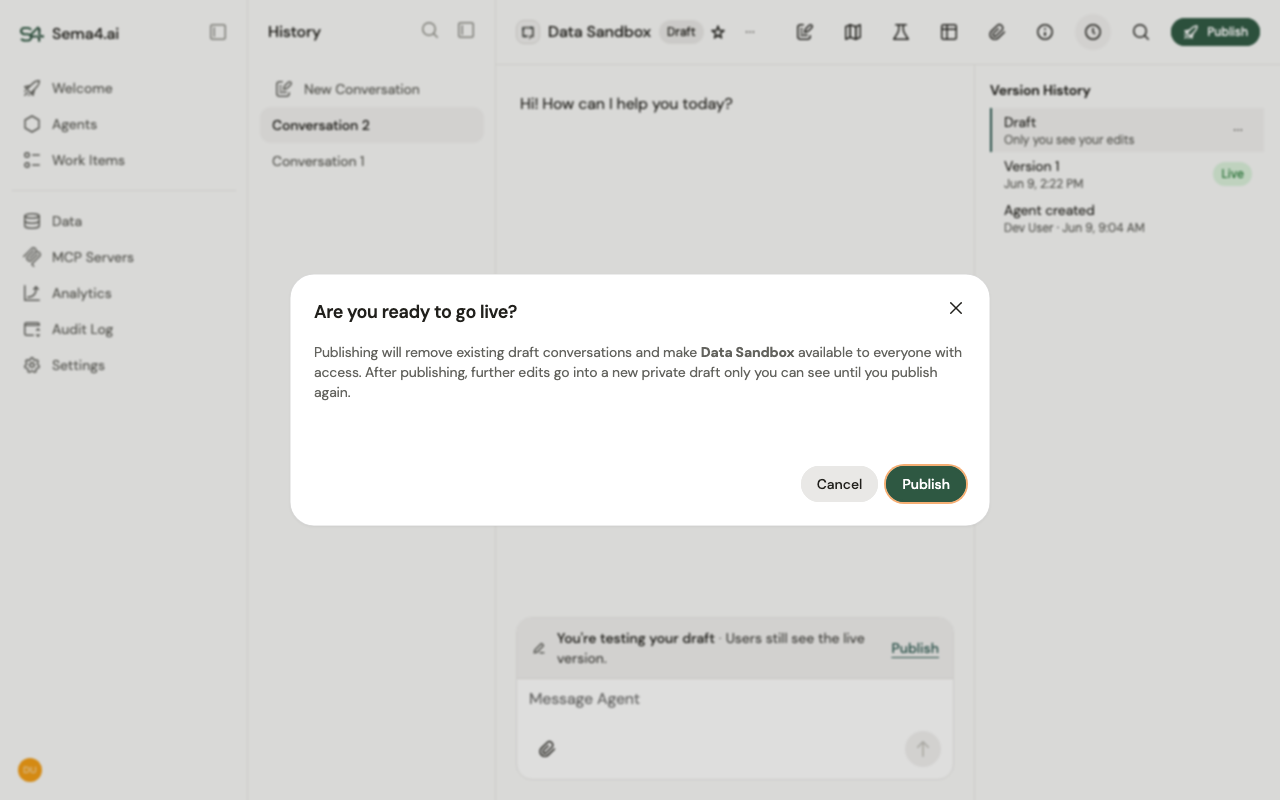
When the draft is ready, click Publish and confirm. The draft becomes the new live version and is available to everyone with access. After publishing, any further edits start a fresh private draft — so the cycle repeats safely.
Publishing deletes your draft test runs. Every conversation you created while testing the draft is removed on publish — and on a worker agent, so is every draft work item. Only conversations and work items on the live agent survive. The same applies to Discard draft. Save anything you need before you publish.
Worker agents
Worker agents follow the same Edit → Test → Publish cycle, with Work Items taking the place of conversations:
- Testing a draft — while you're editing, work items you create run against your draft, so you can safely test unattended processing end to end. They're private to you and deleted when you publish or discard the draft.
- Everyone else stays on live — work items created by other users, through the API, or on a schedule run against the published version. Your draft never processes their work.
- Version pinning — each work item runs the agent version its creator sees at the moment it's picked up for execution, and stays pinned to it. Restarting a work item re-pins it to the current version.
- Work items on an older version show an "Older version" banner with a Start fresh action that creates a new work item on the live version.
The worker agent header shows the same Draft/Live badge, Publish button (with a summary of unpublished changes), and Version History panel as conversational agents.
Swapping connections and MCP servers at publish
If your draft points at test data connections or MCP servers that differ from production, the publish step lets you map each test resource to its production equivalent. The published version then uses the production connections and servers, while your draft keeps using the test ones as you keep iterating.
When the draft and live version use the same connections and MCP servers, there's nothing to map and publishing goes straight through.
Version history & rollback
The Version History panel (the clock icon in the agent toolbar) shows your current Draft and every published version, with who published each and when. The live one is badged Live.
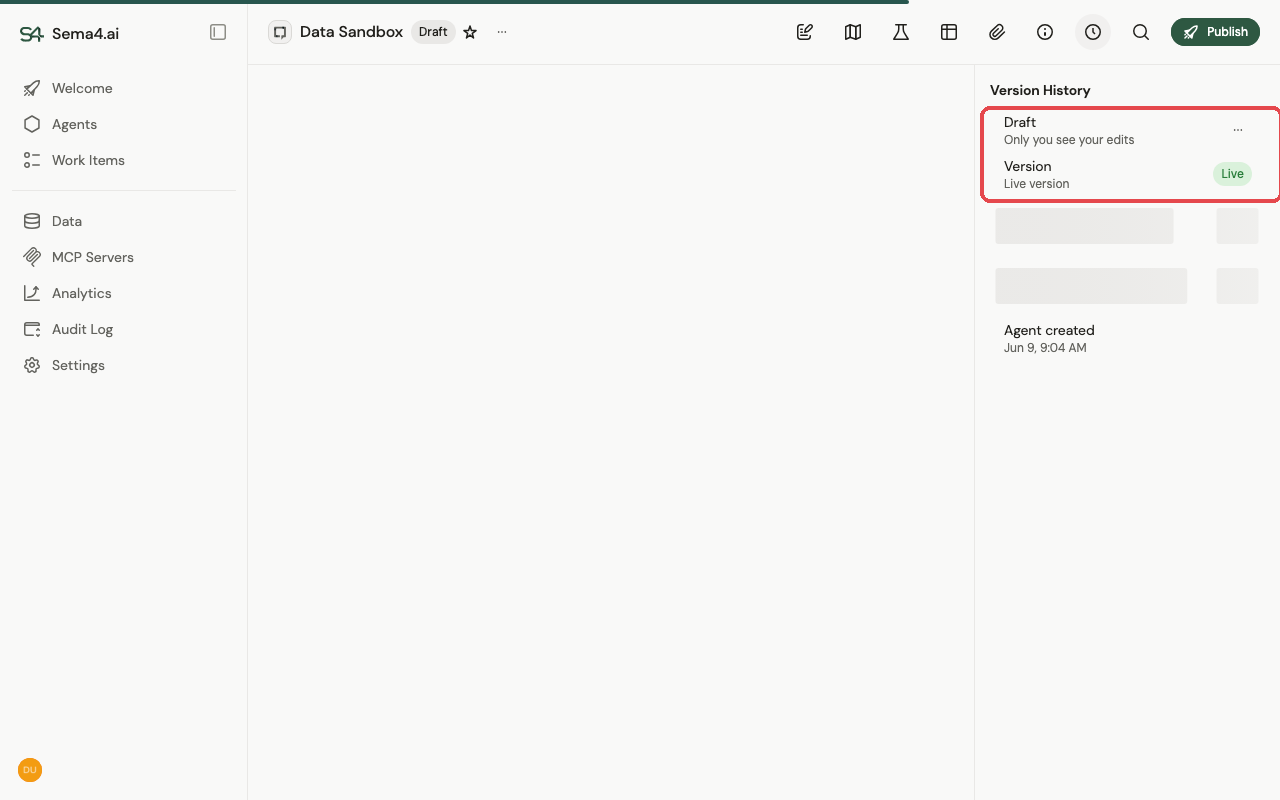
- Discard draft throws away the draft and returns the agent to its live version — your safety net if a change isn't working out.
- You can see exactly what changed and when, giving you an audit trail of the agent over time.
For the user-facing side of this, see Versioning.