Attach a data source
Give a Project the tables it needs from a database or warehouse your organization has connected, and decide which of them it may change.
Audience: builders
Before you start
Data sources are connected to the workspace by an admin on the Data Sources page; see Data sources. A Project can attach any source its team or the organization has connected.
Attaching a source and changing its access needs a Project owner or administrator. Everyone else in the Project can see what is attached and what it may do, but cannot change it.
Attach a source
Find the source in the Context tree
Open the Project, select Context at the top of the sidebar, and expand Data sources under Data. Attached sources are listed first. Sources you can attach are listed under Available.
Select an available source to see where it lives and how many schemas and tables it holds, then select Attach source.

Attaching gives this Project its own attachment to the source, with its own health and discovery. The connection details stay with the organization, and the Project sees only the tables you choose next.
Choose the tables
Pick the tables the Project needs. Search finds tables by name and by their columns, By schema groups the list, and Peek previews a table's rows. Everything you choose starts read only.
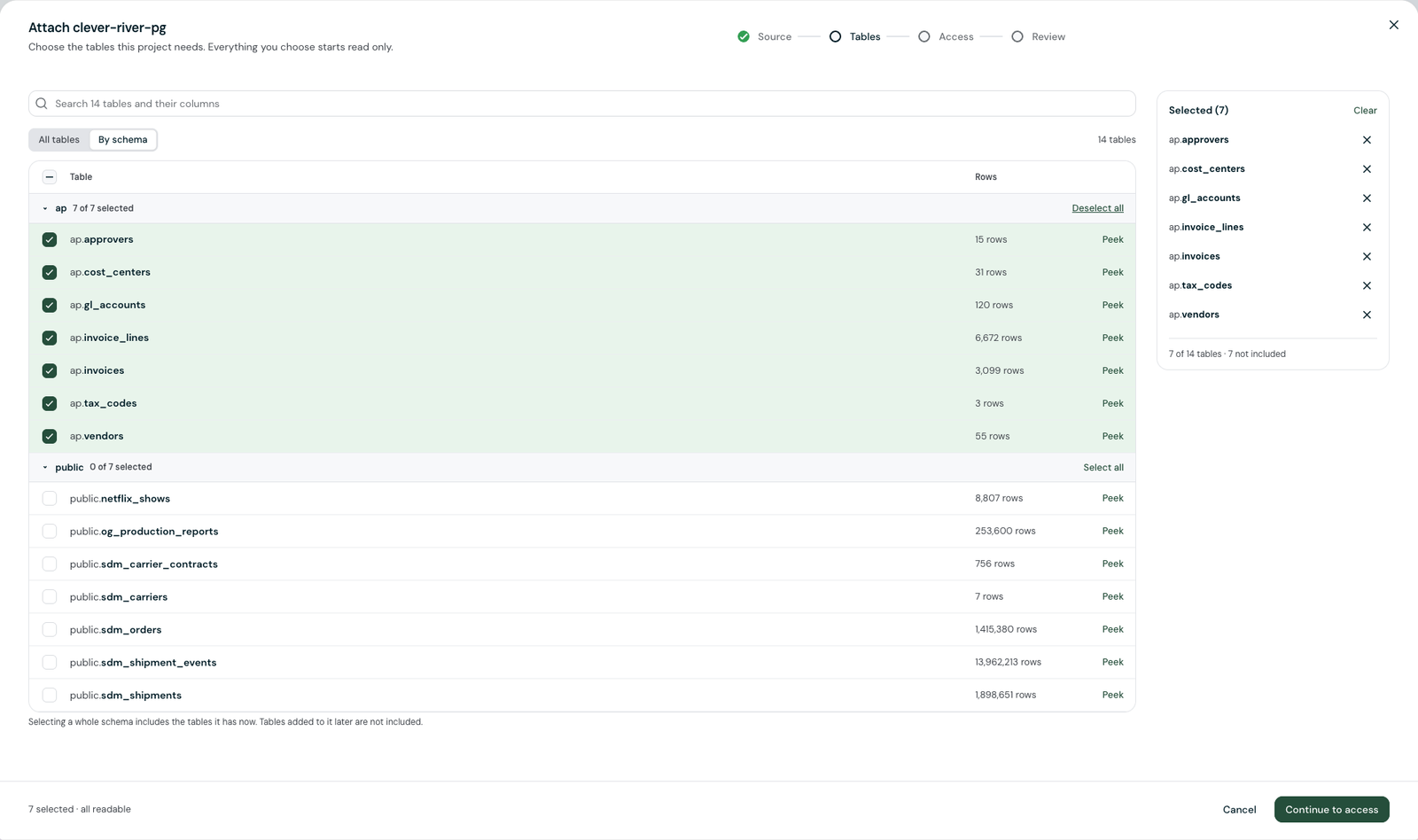
Selecting a whole schema includes the tables it has now. Tables added to the schema later are not included until someone grants access to them.
Decide what may change
The Access step lists your tables as Read only. Switch a table to Allow changes to let the Project add and update its rows.
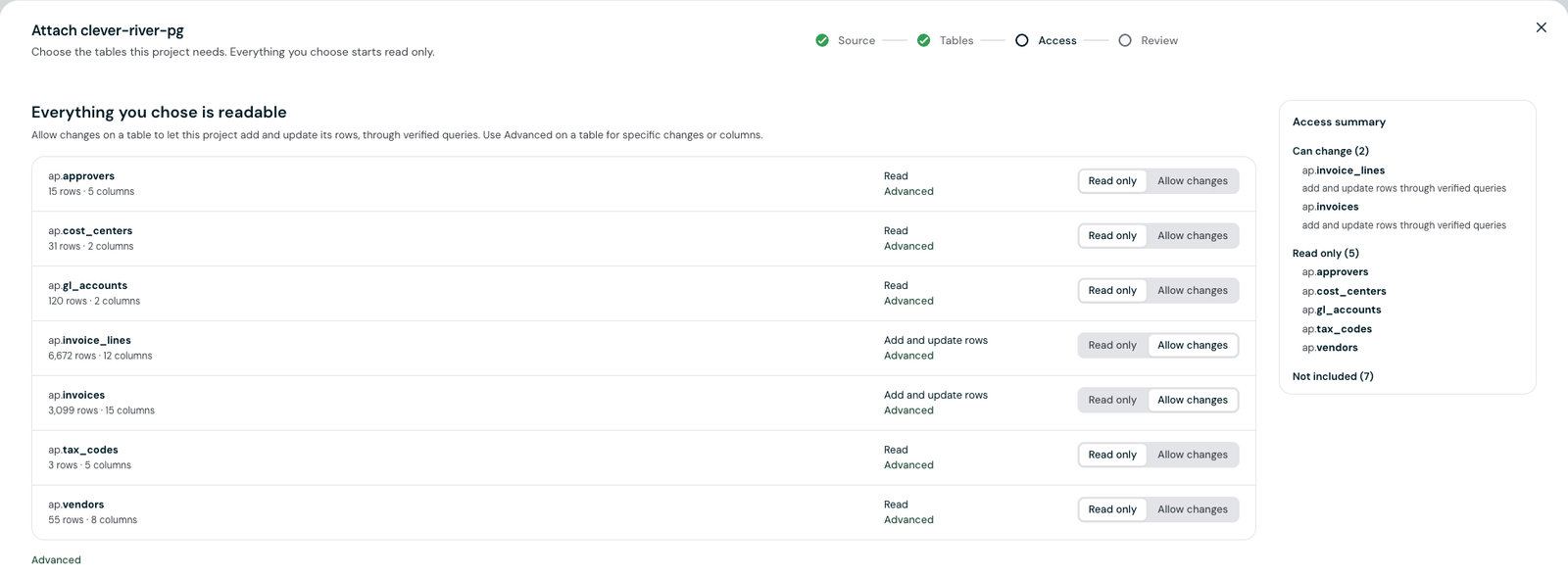
Select Advanced on a table for finer control:
- Add rows, Update rows, and Delete rows are separate permissions. Add and update can be limited to specific columns.
- How changes run: Through verified queries, the default, means each change runs through a reviewed verified query. Directly means changes skip verified queries and run as the agent writes them.
Keep Through verified queries unless the Project's work genuinely needs the agent to write its own changes. See Changing data for what each choice lets the agent do.
Review and attach
The Review step lists what the Project Can change and what is Read only. Use Change tables or Change access to go back, then select Attach source.
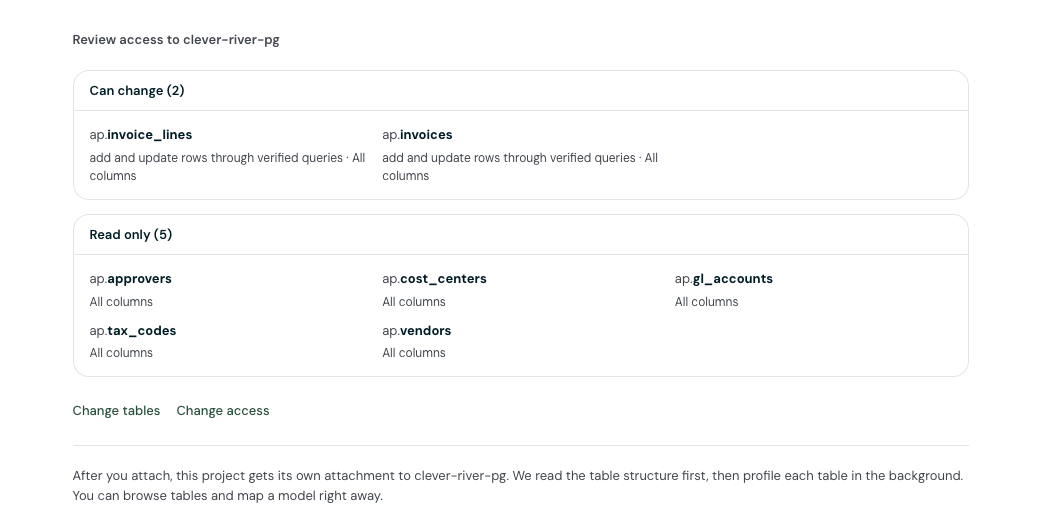
The platform reads the table structure first, then profiles each table in the background. You can browse the tables and map a semantic model right away.
Check an attached source
Select the source under Data sources to open it.
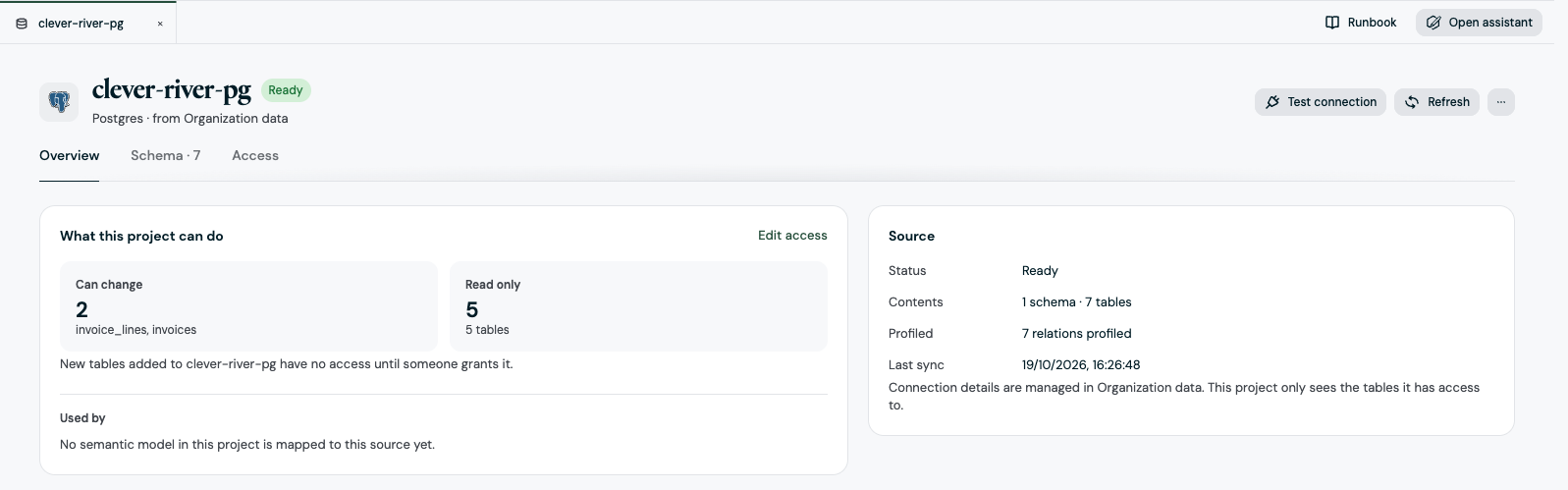
- What this project can do counts the tables the Project Can change and the ones that are Read only. Edit access reopens the access step.
- Used by lists the semantic models in this Project that are mapped to the source.
- Source shows the status, how many schemas and tables the Project sees, how many are profiled, and the last sync.
- The Schema tab lists the tables the Project can see, and the Access tab lists each table's permissions.
Use Test connection to check that the source answers, and Refresh to read its structure again after tables change.
Detach a source
Open the source, select the ... menu, and choose Detach from this project. The source stays connected for the organization, and other Projects keep their attachments.
Detaching breaks the semantic models mapped to it. A model mapped to the source stops working in this Project until you map it to another source. Check Used by before you detach.