Postgres
Connect a Postgres database so Projects can query your operational tables, analytical replicas, or managed Postgres services. The same form covers vanilla Postgres and Neon; TimescaleDB has its own form variant in the Catalog and is covered in Connect non-Snowflake providers.
Audience: IT (the enabler)
Capability profile
Read-only by design. Point connections at an analytical replica when one exists, and create a least-privilege role for the platform rather than reusing an application role.
Who can connect this
Workspace admins and the active team's admin. New connections land in the active team.
What you need
- The host and port (defaults to
5432). - Database name, username, and password.
- An
sslmodevalue (typicallyrequirefor managed services;verify-fullwhen verifying the server certificate) and an optionalchannel_bindingvalue. - Network egress from the platform to the database host, plus an inbound rule on the database for the platform's source IP range.
SSL on managed Postgres. Neon, RDS, Aiven, and Supabase reject unencrypted connections. Set sslmode=require at a minimum. When the form detects a Neon host, it defaults missing SSL options to sslmode=require and channel_binding=require.
Connect Postgres
Open the Postgres catalog tile
On the Data Sources page's Catalog tab, click Create on the Postgres tile. The shared composer opens.
Paste a DSN or fill the form
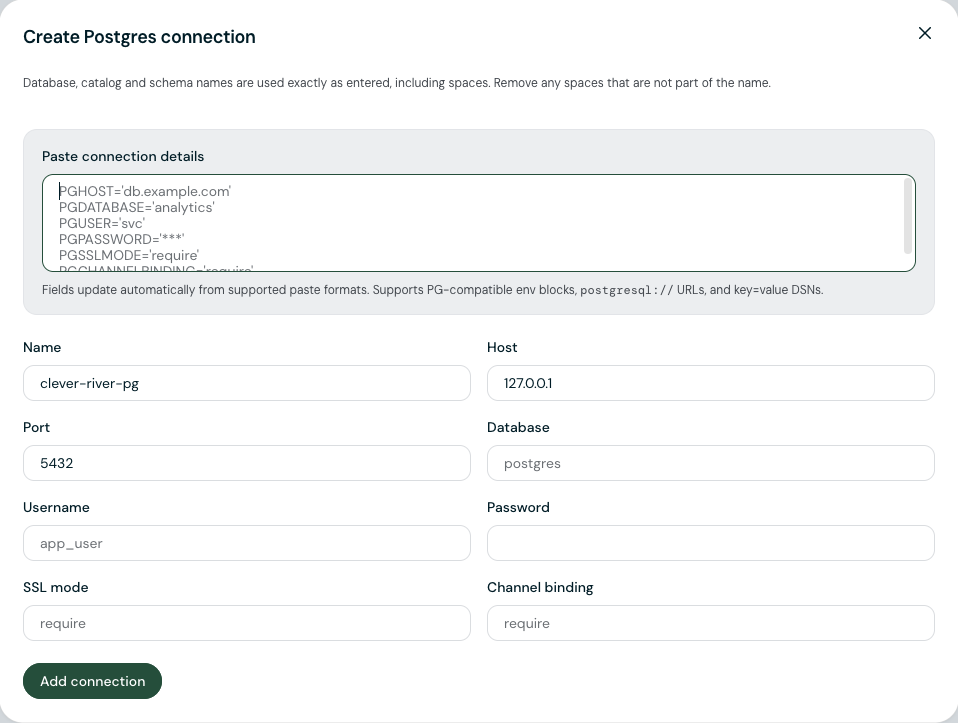
The Paste connection details section accepts PG-compatible env blocks, postgresql:// URLs, and key=value DSNs. The form below populates from the paste. To fill manually, set Host, Port, Database, Username, and Password.
Set SSL options
Set SSL mode to the value your server requires. Add a Channel binding value when the server enforces it. Other Postgres parameters paste into the Additional options record and are preserved on save.
Save and verify
Name the connection (admins see this in the Connected tab) and click Create. Open the connection's drawer and click Run test to verify connectivity, then watch the Readiness tiles fill in as discovery runs.
Required Postgres privileges
The connecting role needs CONNECT on the database, USAGE on each schema in scope, and SELECT on the tables and views the platform should read. For broad coverage on a stable schema set:
GRANT USAGE ON SCHEMA public TO platform_reader;
GRANT SELECT ON ALL TABLES IN SCHEMA public TO platform_reader;
ALTER DEFAULT PRIVILEGES IN SCHEMA public
  GRANT SELECT ON TABLES TO platform_reader;
Repeat per schema. The default-privileges line keeps the role current as new tables land.
Network access
The composer does not include a bastion or SSH tunnel field. When the database sits behind a private network, place a TCP proxy (a managed bastion or a cloud-provider Private Service Connect endpoint) in front of it and point Host at the proxy. Allow the platform's source IPs in the database firewall or security group; confirm the allowlist with the platform operator for your deployment.
Common errors
SSL connection is required. The server refuses unencrypted connections. Setsslmode=require(or stronger).role X does not have permission. The role lacksUSAGEon the schema orSELECTon a table. Grant the missing privilege and re-test.channel binding required. Setchannel_binding=requireto satisfy the server.timeout. Network egress, the database firewall, or the bastion is blocking the connection. Confirm the host and port reach the database from the platform.- Schema search path mismatch. When tables live in a schema other than
public, choose the tables by schema when attaching the source rather than relying on the database's search path.
See also
- Snowflake for the dedicated dialog and Profiles tab.
- Connect non-Snowflake providers for TimescaleDB, MySQL, MSSQL, Oracle, BigQuery, Databricks, Redshift, and ClickHouse.