
Robocorp-Hosted Cloud Worker
Run your robot in Robocorp-Hosted Cloud Worker
You need zero setups to run your Unattended Processes on our Cloud Workers.
👉 Select Cloud Worker in your process step configuration.
👉 Run the process.
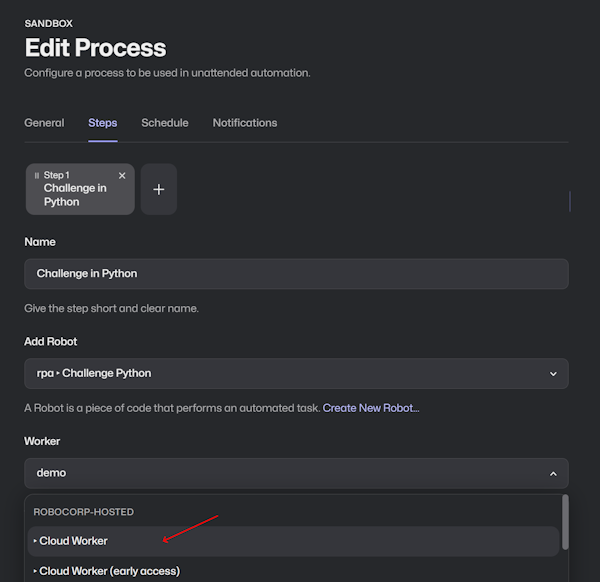
Control Room handles the orchestration from there.
You can easily test things with our Portal examples; most can run on the containers.
For example, RPA Form Challenge handles data from Excel, automates a website, and provides screenshots of the results.
🚀 Certificate Course I is also an excellent place to get familiar with Cloud Workers in action.
Details about the containers
Robocorp-Hosted Cloud Workers run in secure Docker containers on AWS EC2. A container is created for the duration of the robot run and then deleted. Cloud Workers also provide scalability and parallel runs out of the box.
We base our containers on the official Debian images (version bookworm), where we only add the basic required things like the Agent Core, Chromium browser, Git, LibreOffice, and some basic tooling. You can check out the docker configuration files below for more technical details.
The containers are headless, meaning no GUI components are installed here. Still good to note that these containers can, for example, handle all browser automations and get screenshots in these cases. Linux does not need an active desktop GUI to render webpages.
Do not forget that you can load applications like Firefox within your robot that also work in the containers (example here). The applications listed in your conda.yaml get set up in isolated environments by RCC. Check out what you can find in conda-forge.
Different Cloud Worker versions
Each Cloud Worker option is named after the Linux distribution it runs and the date it was built:
There are two kinds of options.
Dated images
A dated image is fixed. The container never changes, so your steps use it until you select a different option.
Auto-update images
An auto-update image has auto-update in place of the date:
Each distribution has one. When we release a new Cloud Worker, we point that distribution's auto-update image to it, and steps that use it get the new container on their next run. This is the only option that changes by itself.
We normally set an auto-update image to the latest available image. This is a guideline, not a fixed rule.
An auto-update image only moves within its own distribution. A newer Debian is added as a new option with its own auto-update image. We never change an existing selection.
Release cadence
We plan to release a new Cloud Worker about once a month. This is a target, not a commitment.
Choosing between them
| Dated image | Auto-update image | |
|---|---|---|
| Container changes over time | No | Yes |
| Security updates | Only when you select a newer image | Automatically, once the auto-update image moves |
| You control the timing | Yes | No |
If you need to control the update cadence or the contents of the container, we support several options for self-hosting Workers.
Global Environment Cache for Robocorp-Hosted Cloud Workers
Because building new Python environments can take minutes, our Cloud Workers leverage the caching provided by RCC. The containers where the Worker runs get a shared environment cache that builds up automatically as new unique conda.yaml files are encountered.
Environments are NOT added to the Global Cache if the conda.yaml contains:
- ...references to private packages or direct URL references.
- ...contains ambiguous versions for any package.
The normal environments that only use publicly available dependencies get added to the cache automatically. Typically, ~5 minutes after the first run of a new conda.yaml, the environment is available and loads quickly on container runs.